Congressional periodic transaction reports often list call options, put options, and other derivative lines—not just common-stock buys and sells. On ProBors, open the Trades tab, set Options to Options only, and you see a chamber-wide feed of derivative-related STOCK Act rows with strike, expiration, and contract detail when the source form carried them. Click a row to open the disclosure context window, verify trade date versus filing date, and cross-check the original House PTR or Senate report before you cite anything. This is a product walkthrough for disclosure researchers, not investment advice.
Quick answer
Sign in at probors.com and open Trades. Use the Options dropdown for Options only when you study calls and puts, or Exclude options when you want a clean common-stock scan. Combine that toggle with politician search, ticker filters, and More filters for date windows and minimum signal score. Expand Detail on derivative rows in the table for inline strike and expiration fields, then click the row for the full context window with chart and parsed disclosure blocks. Pair this screen with how to read politician trade disclosures when you interpret amount brackets on option premiums.
Why options rows need a separate workflow
STOCK Act forms describe options differently from share purchases. A line may show [OP] in the asset label, list contract quantity and strike in the description, or reference index puts with no liquid ticker symbol. Dollar ranges on these rows usually refer to premium paid or received, not the notional value of underlying shares.
Researchers who only scan "Buys" on common stock can miss large call purchases filed under a familiar ticker, or misread a municipal-bond call line as an equity option. ProBors flags rows as options-related when parsed fields or asset labels match derivative patterns, so you can filter without guessing from the company column alone.
Step 1: Open Trades and set the Options filter
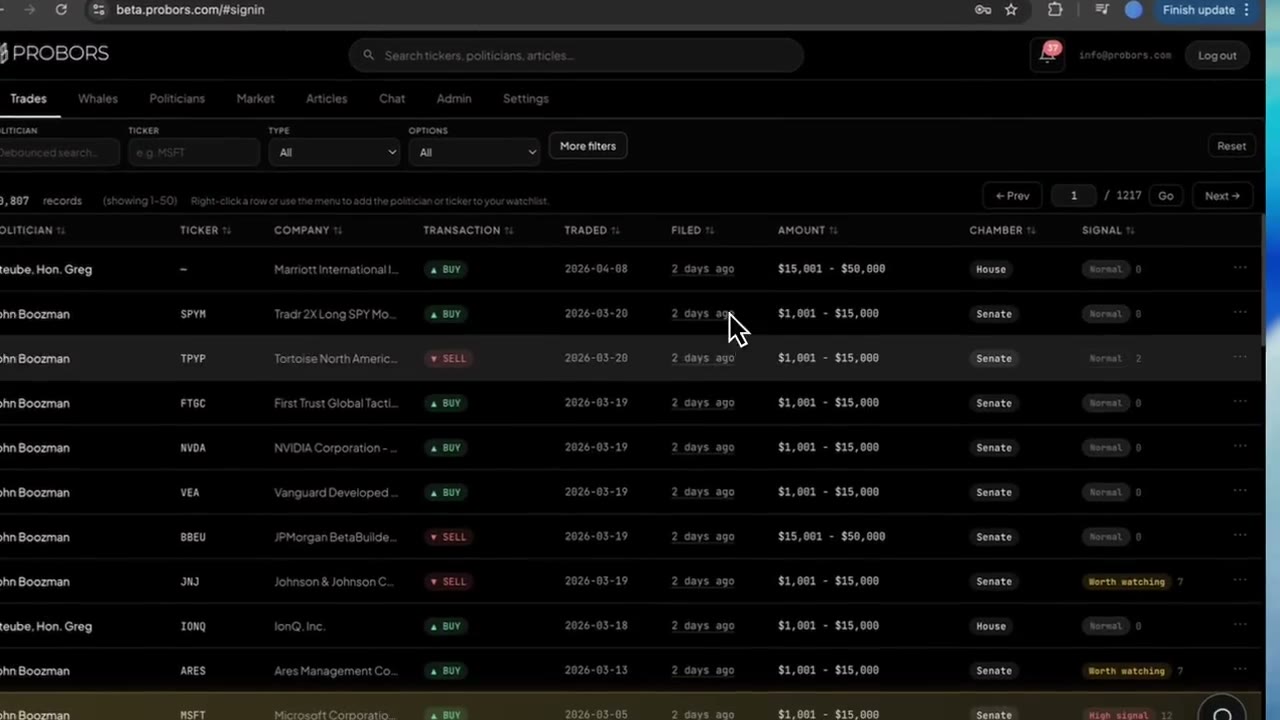
The Trades tab loads congressional disclosures from the House and Senate in one table. In the compact filter bar:
- Set Options to Options only for a derivative-focused feed.
- Leave Type on All until you know whether you care about purchases, sales, or both.
- Add Politician or Ticker when you already have a name or symbol in mind.
- Open More filters for trade-date or filing-date windows, asset-class presets, and Min signal when you want higher-priority rows first.
Active filters appear as removable chips below the bar. Clearing one chip keeps the rest—useful when you drop a ticker but keep Options only for a morning scan.
For the full Trades layout, see the ProBors Trades tab guide.
Step 2: Read the table—ticker gaps and transaction labels
Derivative rows do not always show a clean equity symbol. ProBors may display:
- A normal ticker such as INTC or UBER with an
[OP]tag in the company field. - A long bond or municipal description with no ticker—the symbol column may show a placeholder while the statutory text sits in Company.
- Index or strategy puts encoded in the description (for example PUT/XSP with an expiration date in the label).
Watch the Transaction column. Labels such as Purchase - Call Option, Sale - Call Option, or Sale on a put line are parsed from the source form—they are more precise than treating every row as a stock buy.
Sort by Filed when you want the newest public batches; sort by Traded when you are reconstructing when the position changed. Check Chamber badges so you know whether to pull a House PTR PDF or a Senate periodic report.
Step 3: Expand Detail or open the context window
Rows flagged as derivatives can show a Detail control in the table. Expanding it surfaces inline fields—options type, strike, expiration, contract quantity, and raw transaction codes—without leaving the screener.
Clicking the row opens the disclosure context window. For options-related congress lines, read in this order:
- Hero strip — purchase vs sale, statutory amount bracket, and whether the owner field indicates spouse or self.
- Timeline & source — traded date, filed date, and filing lag in whole days.
- Disclosure detail — strike, expiration, contracts, and asset type when ingest preserved them.
- Price chart — context around the trade date; remember the market moved before the filing became public.
If strike or expiration is blank, the upstream PDF may not have carried structured fields—open the official filing before you assume the data is missing from the transaction.
Step 4: Cross-check with stock-only history and signal reasons
After you review a derivative line, reset Options to Exclude options and filter the same politician or ticker. You will see common-stock activity on the same names without derivative noise—helpful when a member files both share purchases and call options in the same month.
When signal scoring is attached, treat high tiers as a reading queue, not proof of intent. Large premium brackets and first-time option tickers can raise scores; routine bond-call lines may stay Normal. For scoring mechanics, see ProBors trade signal scores.
Step 5: Verify on the official form before sharing
Every options headline should trace back to a signed PTR or Senate report:
- Note the filing date and chamber from the context window.
- Open the House Clerk Financial Disclosure search or Senate eFD search.
- Confirm owner code, contract count, strike, expiration, and amount range against the PDF.
- Add the politician or ticker to your watchlist if you want alerts on the next filing—not the one you just verified.
For a full external-sharing checklist, see how to verify congressional trade disclosures before sharing.
Examples from recent filings in ProBors
The rows below illustrate how derivative lines appear in the Options only feed as of mid-July 2026. Amounts are statutory ranges from the source forms, not exact premiums.
| Politician | Ticker / asset | Type | Traded | Filed | Amount range | Chamber |
|---|---|---|---|---|---|---|
| Nancy Pelosi | INTC (Intel call options) | Purchase - Call Option | May 29, 2026 | June 24, 2026 | $1,000,001–$5,000,000 | House |
| Nancy Pelosi | UBER (Uber options) | Purchase | May 29, 2026 | June 24, 2026 | $500,001–$1,000,000 | House |
| Ro Khanna | PUT/XSP index put (no equity ticker) | Sale | May 28, 2026 | June 9, 2026 | $1,001–$15,000 | House |
Pelosi's Intel and Uber lines are spouse-owned call structures filed about 26 days after the trade date—a typical STOCK Act lag. Khanna's row shows how index puts can appear with a descriptive label instead of a stock symbol. For a deeper read on the Pelosi filing, see Pelosi Intel and Uber call options explained.
What this does not prove
A congressional options purchase does not prove non-public information, future price direction, or that copying the structure is wise. Amount brackets understate or overstate true premium depending on how the filer completed the form. Filing lag means the public learned about the trade weeks after it occurred. Signal scores and Options only filters help you triage—they are not buy or sell recommendations. Verify every material field on the original government disclosure.
FAQ
How do I show only call and put disclosures in ProBors?
On the Trades tab, set the Options dropdown to Options only. Add politician, ticker, or date chips as needed. Use Exclude options when you want common-stock rows without derivative lines.
What is the difference between Detail in the table and the context window?
Detail expands derivative fields inline so you can scan many rows quickly. The context window adds filing lag, signal reasons, chart context, and links to the politician profile and Market workspace—use it as the verification step before you cite a trade.
Why do some options rows have no ticker symbol?
House and Senate forms describe municipal bond calls, index puts, and other instruments with long statutory text. ProBors shows the parsed description in Company even when no liquid equity ticker exists. Read the full label and open the PDF rather than assuming a missing symbol means bad data.
Do amount ranges on options rows show contract value?
Usually not. Ranges typically reflect premium paid or received under STOCK Act brackets, not the notional value of underlying shares. Contract quantity and strike appear in Detail or the context window when the source form included them.
How do alerts work when a member files new options trades?
Add the politician or ticker to your watchlist from a row menu or the context window. Alerts fire on new disclosures ProBors ingests—they do not provide advance notice of trades. See ProBors watchlist alerts for inbox workflow.
Screen congressional options on ProBors
Sign in, set Options only on the Trades tab, and verify strike, expiration, and filing lag in the disclosure context window.
Get startedRelated reading
- ProBors Trades tab guide
- ProBors disclosure context window guide
- Pelosi Intel and Uber call options explained
- How to read politician trade disclosures
- STOCK Act filing delay explained
Sources
- House Clerk Financial Disclosure search — official House PTR filings
- Senate Financial Disclosures (eFD) — official Senate periodic transaction reports
- House asset type codes reference — option and derivative labels on PTR forms
- STOCK Act (Pub. L. 112-105) — statutory disclosure framework
- ProBors data status — ingestion health for congressional feeds
- Rows were checked in ProBors and should be verified against the original filing.
Sources & methodology
Last updated:
ProBors uses public disclosure records, SEC filings, House and Senate financial disclosure portals, market data, and in-product workflow checks. Articles are written as research education, not investment advice.