The ProBors Whales tab is the signed-in dashboard screener for large Form 4 insider transactions. It sits between Congressional trades and Politicians in the main nav and gives you ticker search, open-market filters, SEC transaction codes, notional bounds, signal scoring, and column sorting in one scrollable table. Click any row to open the disclosure context window with filing dates, chart, and parsed fields—then add the insider or ticker to your watchlist. This is a product walkthrough for disclosure researchers, not investment advice.
Quick answer
Open Whales from the dashboard header. Turn on P+S market when you want open-market purchases and sales only (codes P and S), excluding tax withholdings, grants, and exercises. Set a date window and minimum notional in More filters, sort by Recent first, Largest notional, or Signal score, then click a row to verify timing in the context panel. Pair the screener with how to triage whale transactions so size alone does not drive your reading queue.
Where the Whales tab fits
ProBors splits disclosure research across purpose-built tabs:
| Tab | Primary feed |
|---|---|
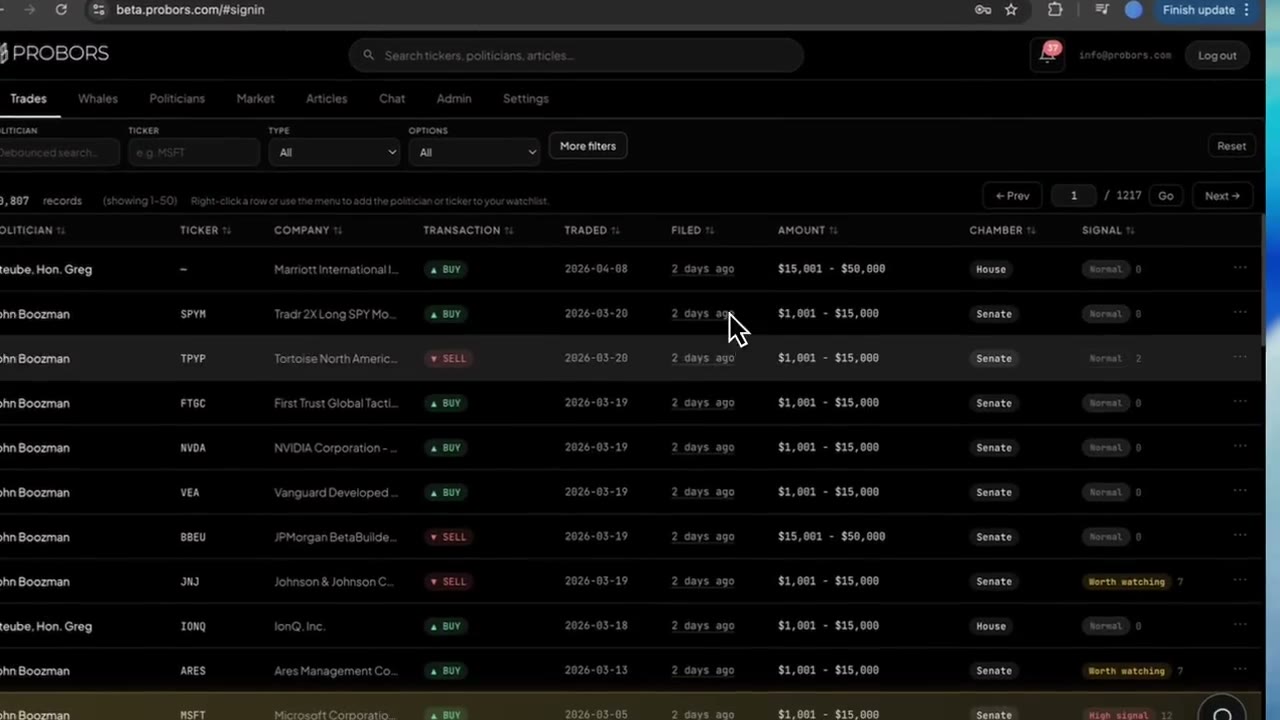
| Trades | Congressional STOCK Act disclosures (House and Senate) |
| Whales | Large insider Form 4 prints with SEC codes and notional sizing |
| Politicians | Member profiles, portfolios, and chamber-specific history |
| Market | Ticker workspace with chart markers for both congress and insiders |
The Whales tab is the fastest path when your question is “what large insider activity landed recently?” without opening EDGAR one filing at a time. It complements the Market workspace, which centers one ticker; Whales centers the insider feed across all symbols.
Step 1: Start with quick filters in the top bar
The compact filter row answers most morning scans:
- Ticker — type a symbol (for example NVDA or PCOR) and press Enter to narrow the feed.
- Insider — debounced name search for a reporting person or entity.
- P+S market — checkbox that limits rows to open-market purchase (P) and sale (S) codes. Leave it off when you are studying grants, tax withholdings, or option exercises; turn it on when discretionary buys and sells are the point.
- Direction — optional buy or sell shortcut on top of other filters.
- More filters — opens the full dialog for dates, company text, instrument type, value and quantity bounds, custom SEC codes, minimum signal score, and sort presets.
- Reset — clears ticker, insider, and all advanced constraints.
Active constraints appear as removable chips below the bar. Remove one chip or choose Clear all without losing your place in the table.
Step 2: Open More filters for dates, size, and SEC codes
The More filters dialog groups the fields researchers reach for after a quick scan:
- Date range — trade date or filing date window (use a short window for daily triage; widen for cluster studies).
- Company (contains) — substring match on issuer name when you care about a sector basket, not one ticker.
- Instrument — presets for common stock, options, RSU, or warrant, plus a custom substring when the preset list does not fit.
- Min / max value and quantity — notional and share-count bounds so mid-six-figure prints surface above routine plan sales.
- Min price — optional per-share floor when you want to exclude penny-line noise.
- SEC codes — comma-separated letters (for example
Ponly, orS,M) when you need finer control than the P+S toggle. - Minimum signal score — surfaces rows ProBors ranked higher for follow-up (see trade signal scores for how to read the label and reasons).
- Sort — Recent first (default), Largest notional, or Signal score.
Apply closes the dialog and refreshes the table. The toolbar shows total matching transactions and the current page range when results exceed one page.
Step 3: Read the table and sort by what matters today
Default columns include ticker, company, insider name, title, transaction type, quantity, price, reported value, trade date, filing date, and signal tier.
- Click a column header to sort ascending or descending on that field.
- Value and Qty use signed formatting so sales read as negative notional where applicable.
- Signal shows the tier badge when scoring is attached—use it as a reading queue, not a verdict.
- Type and SEC code context appear in the row; tax-withholding rows (code F) often dominate raw feeds until you enable P+S market.
Right-click a row or open the row menu to add the insider or ticker to your watchlist without leaving the table. A Data status link in the toolbar opens probors.com/status when you want to confirm ingest health before interpreting an empty result.
Step 4: Click a row to open the disclosure context window
Selecting a row opens the same disclosure context window used elsewhere in ProBors. For insider rows you get:
- Reporting person, title, and transaction side
- Trade date, filing date, and lag in plain language
- SEC transaction code and security type
- Signal score with reason bullets when available
- Price chart around the trade date
- Parsed filing fields for footnote checks
Use this panel as the verification step after the screener—not as a substitute for the original Form 4 on SEC EDGAR. When a filing looks worth tracking, add it to your watchlist from the context bar or return to Whales with your filters saved via chips.
Step 5: Cross-check congress and market context on the same ticker
Whales answers “who filed large insider activity?” It does not show STOCK Act rows by itself. After you shortlist a ticker:
- Open Trades and filter by the same symbol for congressional overlap.
- Open Market workspace on that ticker for chart markers and peer context.
- Ask Chat for a plain-language summary if you already use the AI research assistant.
That three-tab loop keeps insider prints, politician disclosures, and price action aligned without exporting CSVs.
Example: why P+S market changes the feed
As of early July 2026, a raw recent feed can include multiple tax withholding rows on the same issuer filed within two days of the trade—routine compensation events, not open-market bets. Toggling P+S market drops those F-code lines and leaves discretionary sales such as a same-day filed open-market sale on PCOR or a multi-million-dollar entity sale on STRS at the top of a recent sort. Always confirm code and description in the context window before you cite a row externally.
What this tab does not prove
A large notional print does not prove insider knowledge, future price direction, or coordination with congressional activity. Grants, 10b5-1 plan sales, and tax withholdings can carry six-figure values with low research value. Signal scores prioritize attention—they are not buy or sell recommendations. Verify every material claim on the official Form 4 PDF.
FAQ
How is the Whales tab different from the Trades tab?
Trades lists congressional STOCK Act disclosures from House and Senate sources. Whales lists large insider Form 4-style transactions with SEC codes, insider titles, and notional sizing. Use both when a ticker appears in political and corporate disclosure channels.
What does the P+S market toggle do?
It limits results to SEC transaction codes P (open-market purchase) and S (open-market sale). Grants, exercises, tax withholdings, and many plan-related codes drop out so discretionary market activity is easier to scan.
Can I filter to purchases only?
Yes. Set Direction to Buys, enable P+S market, or enter P in the SEC codes field inside More filters. Combining direction with P+S is tighter than direction alone.
Do whale rows use the same signal scores as congress trades?
Whale rows carry their own signal tier when scoring is attached. The numeric scale is a triage aid shared across insider prints; congress disclosures use a parallel scoring layer on the Trades tab. Read reasons in the context window rather than treating the number as alpha.
How do watchlist alerts connect to Whales?
Add an insider or ticker from a whale row menu or the context window. Notification rules live under Settings; see ProBors watchlist alerts for inbox workflow and alert discipline.
Screen insider whales on ProBors
Sign in, open the Whales tab, and pair open-market filters with the disclosure context window and watchlist alerts.
Get startedRelated reading
- How to triage whale transactions on ProBors
- ProBors disclosure context window guide
- Whale transaction tracking overview
- ProBors watchlist alerts
Sources
- SEC EDGAR search — authoritative Form 4 documents
- SEC Form 4 overview — transaction code reference
- ProBors data status — ingestion health for insider and congress feeds
- Rows were checked in ProBors and should be verified against the original filing.
Sources & methodology
Last updated:
ProBors uses public disclosure records, SEC filings, House and Senate financial disclosure portals, market data, and in-product workflow checks. Articles are written as research education, not investment advice.