The ProBors Politicians tab is the member directory inside the signed-in dashboard. It lists every politician ProBors tracks from congressional STOCK Act disclosures—search by name, scan trade counts and last filing dates, follow members for watchlist alerts, and open portfolio snapshots when they exist. Click a card for disclosures or use the Disclosures and Portfolio shortcuts under each row. This guide covers the directory workflow on probors.com, not investment advice.
Quick answer
Open Politicians from the dashboard header. Type in the search box to narrow the grid. Members with a Portfolio snapshot badge appear in the top section; everyone else sits below. Read the trade count, buy/sell split bar, and Last filed date on each card. Press Follow to add the member to your watchlist for new-filing alerts. Click the card—or Disclosures / Portfolio—to open the full politician profile. Pair the directory with the Trades tab when you want a chamber-wide feed instead of one member at a time.
Where the Politicians tab fits
ProBors splits disclosure research across purpose-built tabs:
| Tab | Primary feed |
|---|---|
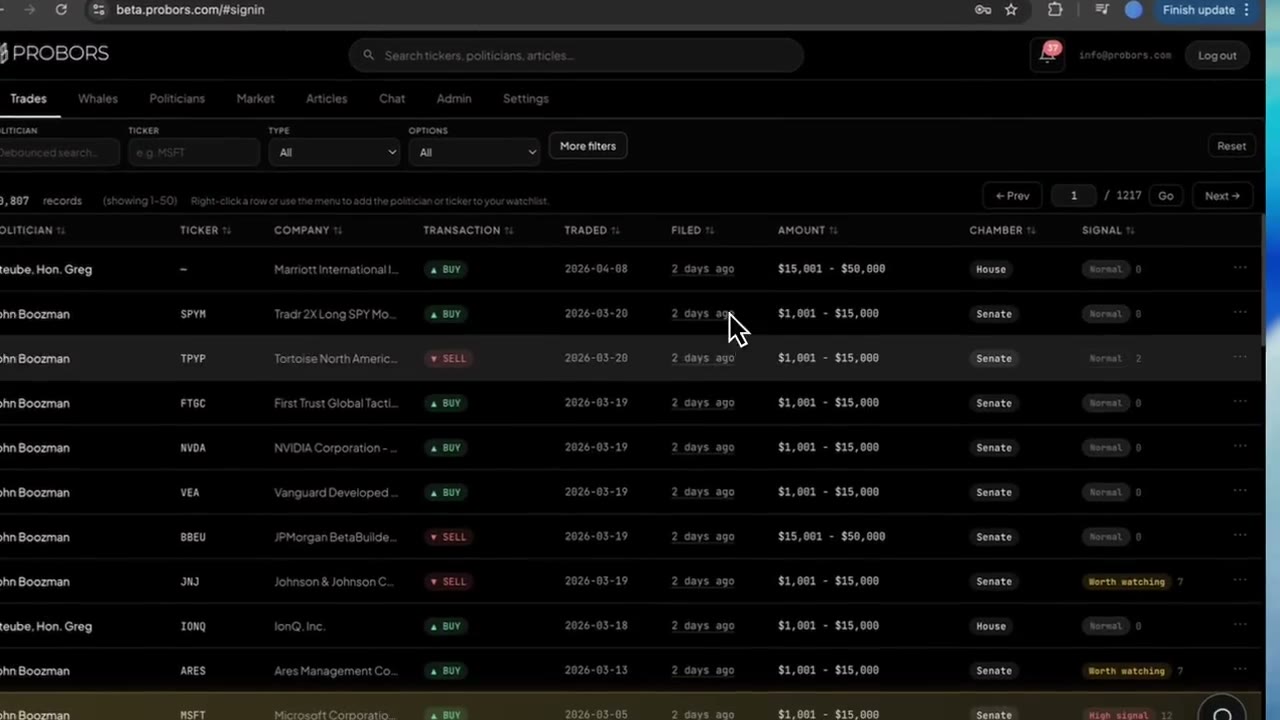
| Trades | Congressional STOCK Act disclosures (House and Senate) |
| Whales | Large insider Form 4 prints with SEC codes and notional sizing |
| Politicians | Member directory, follow controls, portfolio snapshot entry points |
| Market | Ticker workspace with chart markers for both congress and insiders |
The Politicians tab answers “who should I follow?” and “does this member have a portfolio snapshot?” The Trades tab answers “what did Congress disclose recently across all members?” Use both: directory for orientation and follow lists, Trades for morning scans sorted by filing date or signal score.
Global search’s Politicians list chip lands here with your query pre-filled—handy when you remember a last name but not the exact disclosure spelling. See the global search guide for keyboard shortcuts and chip routing.
Step 1: Search and scan the two directory sections
As of mid-July 2026, ProBors lists 554 politicians in the directory—every member with at least one parsed STOCK Act row in the database. The grid splits into two blocks:
- Portfolio snapshot available — members with a cached holdings snapshot you can open on the profile’s Portfolio tab
- Other politicians (or All politicians when no snapshots match your search) — disclosure history only until a snapshot is published
The search box filters both sections in real time. Partial names work: typing Pelosi or Cisneros narrows the grid without opening the full congress feed.
Cards sort alphabetically within each section so repeat visits feel predictable. If your filter returns zero rows, clear the search or try the formal name from an official House PTR or Senate periodic report—spelling variants are common across chambers.
Step 2: Read the card metrics before you click through
Each politician card is a triage tile, not a performance scorecard:
- TRADES — total disclosure rows ProBors has for that member
- BUYS and SELLS — purchase vs sale counts with a green buy-ratio bar
- Last filed — most recent filing date in the database (not the same as last trade date)
- 1M TWR — one-month time-weighted return on the portfolio snapshot when a snapshot exists; shown only on snapshot cards
A high trade count with a recent Last filed date means the member files often—worth a follow if you study that chamber regularly. A stale Last filed date may mean quiet trading, batch filing gaps, or ingest delay; check ProBors data status before assuming the member stopped disclosing.
The buy/sell bar is a directional mix, not dollar weighting. Amount brackets on individual rows still matter when you open the profile.
Step 3: Follow members for watchlist alerts
The Follow chip on each card adds the politician to your ProBors watchlist without leaving the directory. Following enables notification rules you configure under Settings—new filings for that member can surface in your inbox depending on your plan and preferences.
Follow discipline tips:
- Start with a short list of members you actually read (committee chairs, your state delegation, recurring headline names)
- Pair politician follows with ticker watchlists when you care about sector overlap
- When an alert fires, note both traded and filed dates—STOCK Act lag still applies
For inbox workflow and alert frequency, see ProBors watchlist alerts. Following from the directory is the same watchlist item type as following from a trade row or profile page.
Step 4: Open Disclosures or Portfolio from the card
Every card has two explicit shortcuts beneath the metrics:
- Disclosures — opens the member profile on the recent STOCK Act table with signal scores
- Portfolio — opens the profile’s Portfolio tab when a snapshot badge is present
Clicking the card body uses smart routing: snapshot members land on Portfolio first; others land on Disclosures. Use Disclosures when you only need the filing table; use Portfolio when you want holdings context and methodology notes from politician portfolio tracking.
Inside the profile, click any row to open the disclosure context window with chart, lag, and parsed fields. That modal is the verification step before you cite a trade externally.
Step 5: Cross-check with Trades and Market on the same member
The directory is an entry point, not the full research loop. After you follow or shortlist a member:
- Open Trades, filter by Politician, and sort by Recent first to see whether new rows landed since your last visit
- Note repeating tickers across the member’s disclosure table—then open Market on those symbols for chart markers and insider overlap
- Ask Chat for a plain-language summary if you use the AI research assistant
When your question is ticker-first (“who in Congress traded NVDA lately?”), start on Trades or global search instead of scrolling the full directory. When your question is member-first (“what has this senator filed this year?”), start here.
What this tab does not prove
Portfolio snapshot badges and 1M TWR figures are research aids built from public disclosures and reference prices—they are not audited net worth, exact brokerage balances, or proof of trading skill. A member with few trades may still hold undisclosed assets outside STOCK Act coverage rules. Following a politician does not mean you will see trades in real time; alerts fire when new rows enter ProBors after official filing. Always verify material claims on the original House or Senate disclosure form.
FAQ
How is the Politicians tab different from the politician profile?
The Politicians tab is the browse-and-follow directory across all members. The profile page is one member’s deep screen—recent disclosures, portfolio snapshot, positions context, and watchlist controls. You reach profiles from directory cards, Trades rows, or search.
Why do some cards show “No snapshot yet”?
Portfolio snapshots depend on ProBors portfolio ingest for that member. Disclosure history can exist without a holdings snapshot. The Disclosures button still works; Portfolio appears once a snapshot is available.
Can I follow someone without opening their profile?
Yes. Use Follow on the directory card. You can unfollow from the same chip or from the profile header.
How do I find members who filed most recently?
The directory sorts alphabetically, not by filing date. For a recency-sorted feed across all members, use the Trades tab with Recent first sort. Use the directory when you already know the name or want to build a follow list.
Does Follow include portfolio tracking alerts?
Following a politician attaches them to your watchlist for new disclosure activity. Portfolio-specific features depend on snapshot availability and your notification settings—see watchlist alerts for detail.
Browse congressional members on ProBors
Open the Politicians tab, follow the members you study, and jump from directory cards to disclosures and portfolio snapshots.
Get startedRelated reading
- ProBors politician profile guide
- ProBors Trades tab guide
- ProBors politician portfolio tracking
- How to read politician trade disclosures
Sources
- House Clerk Financial Disclosure search — official House PTR filings
- Senate Financial Disclosures (eFD) — official Senate periodic transaction reports
- STOCK Act (Pub. L. 112-105) — statutory disclosure framework
- ProBors data status — ingestion health for congress and portfolio feeds
- Directory counts were checked in ProBors as of July 11, 2026 and should be verified against the original filing.
Sources & methodology
Last updated:
ProBors uses public disclosure records, SEC filings, House and Senate financial disclosure portals, market data, and in-product workflow checks. Articles are written as research education, not investment advice.