The ProBors politician profile is the member-focused screen where disclosure history, summary stats, portfolio snapshots, and position context live on one page. Instead of filtering the full congress feed every time you follow one senator or representative, you open their profile and work from a curated view. This guide walks through the signed-in workflow on probors.com. It is a product walkthrough, not investment advice.
Quick answer
Open the Politicians tab, pick a member, and land on their profile with two tabs: Disclosures (recent STOCK Act rows with signal scores) and Portfolio snapshot (cached holdings when available). Click any disclosure row to open the chart-and-detail context window. Add the politician to your watchlist when you want alerts on the next filing.
Where the politician profile lives
You can reach a member profile from several entry points:
| Entry point | What happens |
|---|---|
| Politicians tab | Browse the directory, sort by recent filings or portfolio availability, open a card |
| Congress trade row | Click the politician name on any disclosure in the main feed |
| Search | Type a name and select the politician match |
| Watchlist | Jump from an alert back to the member screen |
The URL pattern is /politicians/{name} with an optional portfolio tab. Bookmark profiles you revisit weekly so you skip the directory scroll.
Step 1: Read the summary KPIs before drilling into rows
The hero block shows the member photo, formal disclosure name, and a row of summary chips:
- Total trades in the ProBors database for that politician
- Buys vs sells split
- Estimated buy and sell notional (derived from amount brackets—not exact brokerage balances)
- Distinct tickers traded
- First traded date → last filed date span
- Portfolio snapshot yes/no flag
Treat these as orientation, not a performance scorecard. Amount brackets understate or overstate true size, and filing lag means the last filed date is not the last trade date.
If your search matches multiple members with similar names, ProBors shows a Multiple matches picker—choose the correct chamber and spelling before interpreting rows.
Step 2: Scan recent disclosures with signal scores
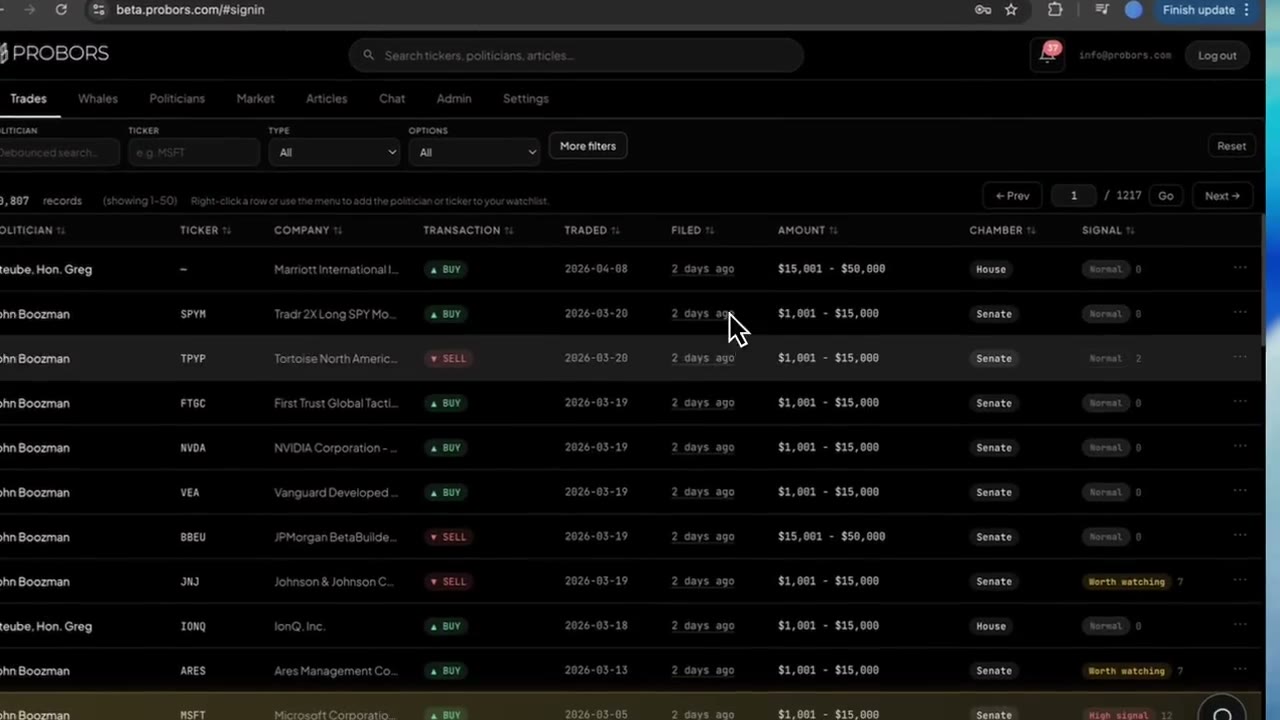
The Recent disclosures table is the core of the Disclosures tab. Columns include ticker, company name, transaction type, traded date, filed date, amount bracket, and signal score.
Use the table to answer:
- What did they file most recently?
- Are recent rows mostly purchases or sales?
- Which tickers repeat across multiple filings?
- Which rows earned a higher signal score for triage?
Click a row to open the disclosure context modal with price chart, filing delay, source chamber, and derivative detail when the form type requires it. Rows with options or complex asset types may expose an inline Detail toggle for the raw disclosure fields.
For how signal scores are meant to be used—and what they are not—see ProBors trade signal scores.
Step 3: Review positions and methodology notes
Below the disclosure table, the Positions & P/L section shows reference-price context when market data is available for disclosed tickers. You may see:
- An aggregate summary block (counts, notionals, return bands)
- A positions table with ticker-level reference prices and return percentages
- A methodology footnote explaining how returns are estimated
This block helps you ask better questions—did disclosed buys cluster near local highs?—but it does not prove live portfolio performance. Holdings change between snapshot dates, and not every line item maps cleanly to a liquid ticker.
Step 4: Open the portfolio snapshot tab
Switch to Portfolio snapshot when the member has a cached periodic holdings file. This tab is separate from trade-by-trade history:
| View | Best for |
|---|---|
| Disclosures tab | Timing, buys/sells, signal triage |
| Portfolio snapshot tab | What they reported holding as of a filing date |
The snapshot tab lists normalized holdings rows, links back to disclosures, and shows when the file was last updated in ProBors. Read politician portfolio tracking on ProBors for limitations around ranges, amendments, and stale snapshots.
If no snapshot exists, stay on the Disclosures tab and use trade history plus the Market workspace for ticker-level charts.
Step 5: Connect the profile to alerts and AI follow-ups
Once you identify a member worth monitoring:
- Add to watchlist from the profile or Politicians directory so new filings surface in your inbox
- Open AI chat and ask politician-scoped questions ("summarize this member's NVDA disclosures this year")
- Cross-check tickers in the Market workspace when a disclosure row warrants deeper price context
Watchlist alerts fire when new data lands in ProBors—not when the trade occurs. Pair politician alerts with ticker watchlists when you care about sector overlap. See ProBors watchlist alerts for setup tips.
Common mistakes on politician profiles
- Treating estimated notional as exact dollars — brackets and midpoint math are for magnitude, not position sizing
- Ignoring filing lag — the newest row may describe a trade from weeks earlier; compare traded date and filed date on every row
- Skipping name disambiguation — common surnames can match multiple members; confirm chamber and full formal name
- Expecting a live brokerage balance — snapshots are as-of filing date; trades after that date may not appear until the next report
FAQ
Is the politician profile the same as the portfolio page?
No. The profile is a unified screen with Disclosures and Portfolio snapshot tabs. Trade history and holdings answer different questions; use both tabs when snapshots exist.
Why does a politician show trades but no portfolio snapshot?
Not every member has a periodic holdings file ingested yet, or the disclosure name may differ from trade-card spelling. The KPI row shows whether a snapshot is available.
Can I compare two politicians side by side?
The profile is single-member focused. For comparisons, use AI chat tables, the main congress feed with filters, or open two browser tabs.
Do signal scores on the profile differ from the main congress feed?
No. Scores use the same scoring layer shown elsewhere in ProBors. The profile simply scopes rows to one politician.
What if the profile returns not found?
Try the formal disclosure spelling from an official filing, or start from the Politicians directory where names are normalized.
Open a politician profile on ProBors
Pick a member, review recent disclosures with signal scores, and add them to your watchlist for the next filing.
Get startedRelated reading
- Track politician stock portfolios on ProBors
- How to read politician trade disclosures
- ProBors watchlist alerts
- ProBors trade signal scores
- ProBors Market workspace guide
Sources
- House Clerk financial disclosure reports
- Senate financial disclosure eFD search
- STOCK Act (Pub. L. 112-105)
- Rows were checked in ProBors and should be verified against the original filing.
- Data ingestion status: probors.com/status
Sources & methodology
Last updated:
ProBors uses public disclosure records, SEC filings, House and Senate financial disclosure portals, market data, and in-product workflow checks. Articles are written as research education, not investment advice.