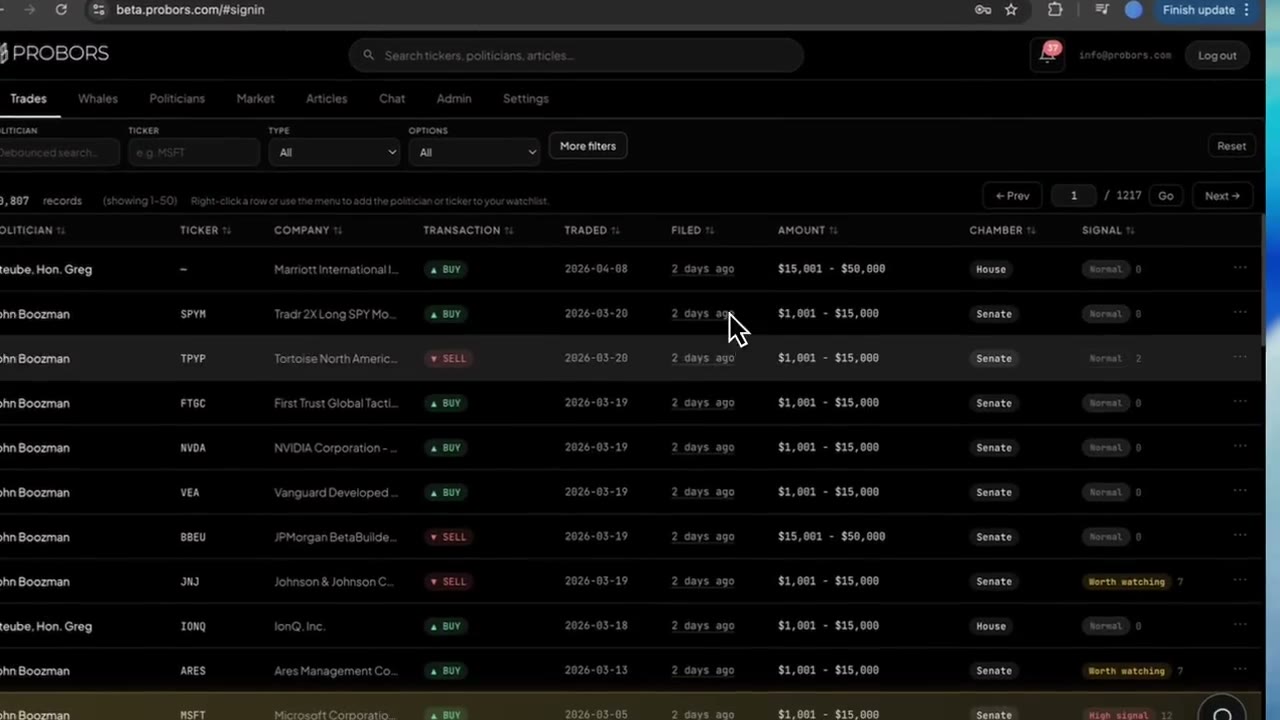
The ProBors global search bar sits in the signed-in header and routes you to the right screen without tab-hopping. Type a ticker, politician name, or keyword and the dropdown groups matches into tickers, politicians, blog results, and an assistant shortcut—plus quick chips for congress trades, whale tables, and the politicians directory. This guide walks through the five-step search workflow on probors.com. It is a product walkthrough, not investment advice.
Quick answer
Click the header search field (placeholder: “Search tickers, politicians, blog…”), type at least one character, and pick a result. Tickers open the Market workspace; politicians open their profile page; blog results open the Blog tab; the assistant row pre-fills Chat with your query. Use arrow keys to move, Enter to select, Escape to close. If you only know part of a name, the Congress trades matching chip filters the disclosure feed without leaving search.
Where global search lives
Global search is available on every signed-in dashboard view in the top header, next to the notification bell. It is designed for mid-research pivots:
| You are on… | Search for… | Typical landing |
|---|---|---|
| Congressional trades feed | NVDA | Market workspace on NVDA |
| Market workspace | Pelosi | Politician profile |
| Whale table | semiconductor | Congress trades chip or assistant |
| Any tab | AAPL + Enter | Market workspace (ticker match) |
Deep links preserve context: selecting a ticker sets the Market tab with that symbol active; selecting a politician navigates to /politicians/{name}.
Step 1: Choose ticker vs name vs keyword intent
Before typing, decide what you need:
- Ticker symbol (
GOOGL,BRK.B) → Market workspace or ticker-filtered congress/whale views - Politician name (full or partial) → Profile page or filtered congress feed
- Topic keyword (
defense,options) → Congress trades chip, blog results, or assistant prefill
ProBors normalizes ticker queries to uppercase and recognizes common symbol patterns including dotted share classes. A lone symbol that looks like a ticker will open the Market workspace even if autocomplete has not returned yet.
Step 2: Use the dropdown sections
After a short debounce, results appear in labeled sections:
- Tickers & companies — symbol plus company name from the ticker directory
- Politicians — members whose disclosure names contain your text
- Blog — product guides matching the query (opens the Blog tab with search applied)
- Assistant — “Ask assistant about …” opens Chat with your text in the input box
The first matching ticker may also appear as a raw symbol row if you typed a valid ticker that is not in the suggestion list yet.
Step 3: Use quick-action chips for table views
Above the grouped results, three chips jump straight to filtered tables without picking a single row:
- Congress trades matching — opens the Congressional trades tab with ticker or politician filter applied
- Whale & insider table — opens Whales with ticker or insider name filter
- Politicians list — opens the Politicians directory with your text as search
Use chips when you want a scan (all NVDA congress rows) rather than a destination (NVDA market workspace). Pair a chip with signal filters on the trades tab for a tighter morning list—see how to filter congress trades by signal score.
Step 4: Keyboard navigation and Enter behavior
Power users can stay on the keyboard:
- Arrow Down / Up — highlight the next or previous result
- Enter — run the highlighted item, or fall back to smart routing:
- Valid ticker → Market workspace
- Single politician match in the directory → that profile
- Otherwise → Congressional trades filtered by your text
- Escape — close the dropdown without navigating
If multiple politicians match a partial name, Enter may land on the trades feed with a text filter instead of guessing the wrong member. Narrow the spelling or pick the profile row explicitly—especially for common surnames.
Step 5: Chain search into profile, workspace, or watchlist
Search is an entry point, not the research finish line. A repeatable loop:
- Search ticker → Market workspace → review Price & disclosures chart
- Search politician → Profile → Recent disclosures table with signal scores
- Add to watchlist from the row or profile when you want the next filing alert
- Open Chat from the assistant row for a summarized table (“largest purchases on this ticker last 30 days”)
For politician-specific screens after you land, see ProBors politician profile guide. For ticker-centric layout, see ProBors Market workspace guide.
When global search is not enough
Global search does not replace chamber-specific filters, date windows, or signal floors on the full tables. Use search to arrive, then refine on the destination tab:
- Sort by filing date when you care what became public this week
- Compare transaction date vs filing date before citing lag—see filing date vs transaction date
- Open the source disclosure PDF from any row you plan to publish or trade on
If results look empty, check data status for ingestion health before assuming the ticker or member is missing.
FAQ
Does global search include whale and insider data in the dropdown?
The dropdown highlights tickers, politicians, and blog results. For whale-specific scans, use the Whale & insider table chip or open the Whales tab after landing on a ticker in the Market workspace.
Can I search from the marketing homepage?
Global search is a signed-in dashboard feature. Visitors can browse public blog and marketing pages; disclosure tables require an account on probors.com.
What happens if I type a politician name that matches several members?
The dropdown lists each match separately. If you press Enter with an ambiguous partial name, ProBors may route you to the Congressional trades feed with a text filter instead of opening the wrong profile. Select the exact row when names overlap.
Does search respect watchlists?
Search navigation is independent of watchlists. After you find a ticker or politician, add them from the profile or row actions if you want inbox alerts—see ProBors watchlist alerts.
Can I ask the AI assistant from search?
Yes. The Assistant section includes a row that opens the Chat tab with your query pre-filled. For prompt patterns and grounded tables, see ProBors AI research assistant.
Search once, research everywhere
Sign in at probors.com and use the header search bar to jump from tickers to politicians to disclosure tables in one motion.
Get startedRelated reading
- ProBors Market workspace guide
- ProBors politician profile guide
- Track congress stock trades by ticker
- ProBors watchlist alerts
Sources
- House Financial Disclosure search — official PTR source for representatives
- Senate eFD search — official periodic transaction reports
- STOCK Act (S. 2038, 112th Congress) — statutory disclosure framework
- Rows cited in related guides were checked in ProBors and should be verified against the original filing.
- Ingestion schedule and feed health: probors.com/status
Sources & methodology
Last updated:
ProBors uses public disclosure records, SEC filings, House and Senate financial disclosure portals, market data, and in-product workflow checks. Articles are written as research education, not investment advice.