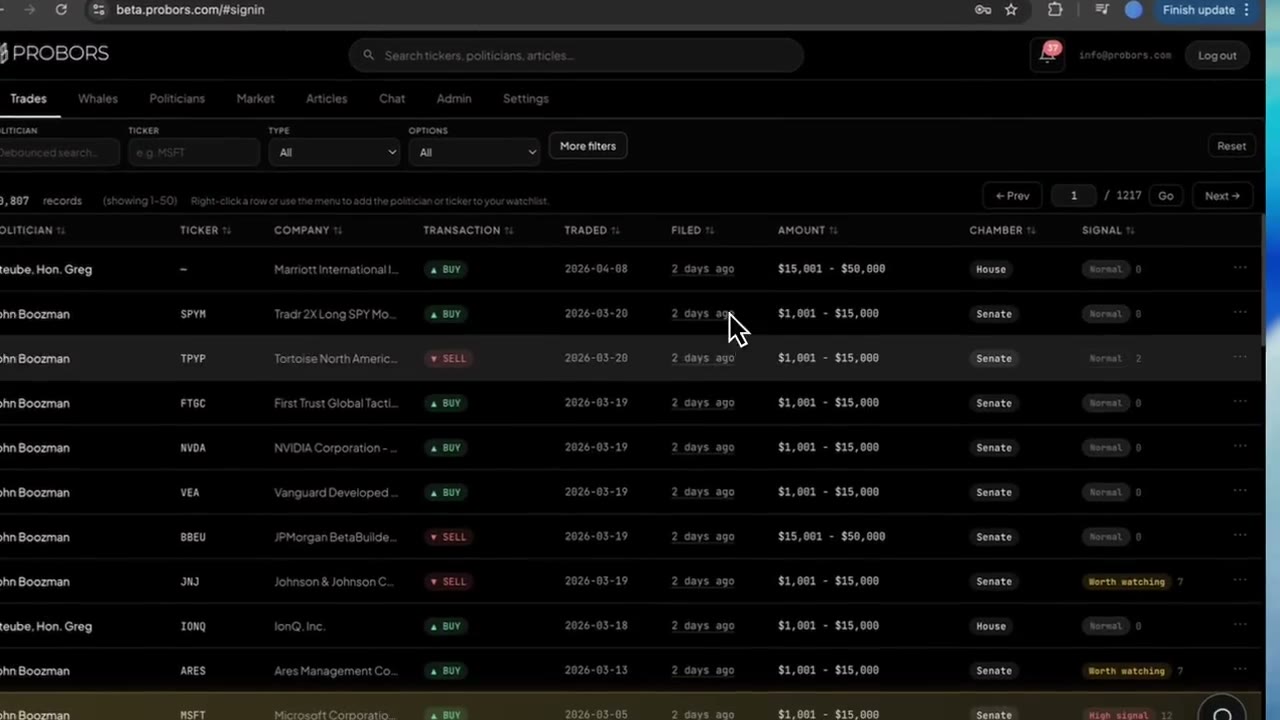
The ProBors Trades tab is the default screen after you sign in at probors.com. It lists congressional STOCK Act disclosures from the House and Senate in one sortable table—politician search, ticker filters, buy/sell shortcuts, options toggles, signal scoring, and chamber badges on every row. Click a line to open the disclosure context window with filing lag, chart, and parsed fields, then add the member or ticker to your watchlist. This is a product walkthrough for disclosure researchers, not investment advice.
Quick answer
Open Trades from the dashboard header (it loads by default). Set Politician or Ticker in the compact bar, choose Buys or Sells when direction matters, and use Options to include or exclude derivative-related rows. Open More filters for date windows, asset-class presets, minimum signal score, estimated-value bounds, and sort presets such as Recent first, Signal score, or Largest value. Click a row to verify dates in the context panel; right-click or use the row menu to watchlist the politician or symbol. Pair the screener with how to filter congress trades by signal score when you want a repeatable morning queue.
Where the Trades tab fits
ProBors splits disclosure research across purpose-built tabs:
| Tab | Primary feed |
|---|---|
| Trades | Congressional STOCK Act disclosures (House and Senate) |
| Whales | Large insider Form 4 prints with SEC codes and notional sizing |
| Politicians | Member profiles, portfolios, and chamber-specific history |
| Market | Ticker workspace with chart markers for both congress and insiders |
The Trades tab is the fastest path when your question is “what did Congress disclose recently?” without opening House PTR PDFs and Senate periodic reports one at a time. It complements the Politicians tab profile pages, which center one member; Trades centers the chamber-wide feed across all symbols.
Global search chips such as Congress trades matching land here with a ticker or politician filter already applied—useful when you pivot from the Market workspace or global search bar.
Step 1: Start with quick filters in the top bar
The compact filter row answers most morning scans:
- Politician — debounced name search; partial matches work when you remember only a last name.
- Ticker — type a symbol (for example MSFT or NVDA) and press Enter to narrow the feed.
- Type — Buys or Sells shortcut on top of other constraints.
- Options — Options only when you study calls and puts; Exclude options when common-stock rows are the point.
- More filters — opens the full dialog for dates, asset class, signal floor, value bounds, and sort presets.
- Reset — clears politician text and all advanced constraints.
Active constraints appear as removable chips below the bar. Remove one chip or choose Clear all without reloading the page.
Step 2: Open More filters for dates, size, and signal
The More filters dialog groups the fields researchers reach for after a quick scan:
- Asset class (preset) — Stock, ETF, Bond, and similar labels ProBors normalizes from the source form.
- Asset (custom substring) — free-text match when the preset list does not fit municipal bonds, funds, or unusual descriptions.
- Date range — trade-date or filing-date window (use a short window for daily triage; widen for committee-hearing studies).
- Min signal (1–15) — surfaces rows ProBors ranked higher for follow-up (see trade signal scores for how to read the label and reasons).
- Sort preset — Recent first (default), Signal score, or Largest value.
- Min / max estimated value — dollar bounds when you want larger statutory brackets above small routine lines.
- Min / max price per share — optional per-share floor or ceiling when you filter liquid equities.
Done closes the dialog and refreshes the table. The toolbar shows total matching records and the current page range when results exceed fifty rows per page.
Step 3: Read the table and sort by what matters today
Default columns include politician, ticker, company, transaction type, traded date, filed date, amount bracket, chamber, and signal tier.
- Click a column header to sort ascending or descending on that field.
- Filed shows a relative label (for example “3 days ago”) so you spot fresh batches without mental date math.
- Chamber badges distinguish House PTR rows from Senate periodic transaction reports in the same feed.
- Signal shows the tier badge when scoring is attached—high-signal rows get subtle row highlighting as a reading queue, not a verdict.
- Detail on derivative rows expands an inline disclosure panel for options type, strike, and expiration without leaving the table.
Right-click a row or open the row menu to add the politician or ticker to your watchlist. A Data status link in the toolbar opens probors.com/status when you want to confirm ingest health before interpreting an empty result.
Step 4: Click a row to open the disclosure context window
Selecting a row opens the same disclosure context window used elsewhere in ProBors. For congressional rows you get:
- Purchase vs sale badges and statutory amount bracket
- Trade date, filing date, and lag in plain language
- House or Senate source and normalized filing fields
- Signal score with reason bullets when available
- Price chart around the trade or filing date
- Links to the politician profile and Market workspace on the same ticker
Use this panel as the verification step after the screener—not as a substitute for the original PTR or Senate PDF on the official disclosure sites. When a filing looks worth tracking, add it to your watchlist from the context bar or return to Trades with your filter chips intact.
Step 5: Cross-check insiders and market context on the same ticker
Trades answers “what did members of Congress disclose?” It does not show Form 4 insider prints by itself. After you shortlist a ticker:
- Open Whales and filter by the same symbol for insider overlap—see the Whales tab guide.
- Open Market workspace on that ticker for chart markers and peer context.
- Ask Chat for a plain-language summary if you already use the AI research assistant.
That three-tab loop keeps STOCK Act rows, insider filings, and price action aligned without exporting spreadsheets.
What this tab does not prove
A congressional purchase or sale does not prove inside information, future price direction, or coordination with corporate insiders. Amount brackets are statutory ranges, not exact position sizes. Filing lag means the public learned about the trade days or weeks after it occurred—always log both traded and filed dates. Signal scores prioritize attention; they are not buy or sell recommendations. Verify every material claim on the original House or Senate disclosure form.
FAQ
How is the Trades tab different from the Whales tab?
Trades lists congressional STOCK Act disclosures from House and Senate sources. Whales lists large insider Form 4-style transactions with SEC codes and insider titles. Use both when a ticker appears in political and corporate disclosure channels.
Can I filter to House or Senate only?
The default feed includes both chambers. Use the Chamber column to sort or scan badges after you apply ticker or politician filters. For chamber-specific research habits, see the House stock trading tracker and Senate stock trading tracker guides.
What does the Options dropdown do?
Options only limits results to rows ProBors flagged as options-related. Exclude options drops derivative lines so common-stock purchases and sales are easier to scan. Open Detail on a derivative row or the context window for strike and expiration fields.
How do signal scores work on the Trades tab?
Each row can carry a numeric score and tier label (such as Normal or Worth watching) with reason bullets in the context window. Set a Min signal in More filters to hide low-priority noise. Scores help triage—they do not certify intent or performance.
How do watchlist alerts connect to Trades?
Add a politician or ticker from a row menu or the context window. Notification rules live under Settings; see ProBors watchlist alerts for inbox workflow and alert discipline.
Screen congressional disclosures on ProBors
Sign in, open the Trades tab, and pair chamber-wide filters with the disclosure context window and watchlist alerts.
Get startedRelated reading
- How to filter congress trades by signal score
- ProBors Whales tab guide
- ProBors disclosure context window guide
- How to read politician trade disclosures
Sources
- House Clerk Financial Disclosure search — official House PTR filings
- Senate Financial Disclosures (eFD) — official Senate periodic transaction reports
- STOCK Act (Pub. L. 112-105) — statutory disclosure framework
- ProBors data status — ingestion health for congress and insider feeds
- Rows were checked in ProBors and should be verified against the original filing.
Sources & methodology
Last updated:
ProBors uses public disclosure records, SEC filings, House and Senate financial disclosure portals, market data, and in-product workflow checks. Articles are written as research education, not investment advice.