ProBors can notify you when insider Form 4 activity or large whale transactions match names on your watchlist—but the default feed gets noisy fast if you follow dozens of tickers. Notification preferences live under Settings → Notifications and let you define alert rules: which activity types count, minimum trade size, how fresh a filing must be, whether similar alerts group together, and how many messages you receive per day. This guide walks through that screen so alerts stay useful instead of overwhelming. This is a product walkthrough, not investment advice.
Quick answer
Open Settings from the dashboard header, scroll to Notifications, and use the Rules, Following, and Inbox tabs. Rules filter insider trades, whale transactions, or both before anything reaches you. Following is your watchlist of tickers, politicians, and whale insiders. Inbox stores the alerts that passed your filters. The header bell shows the same unread count and a quick preview—use it for triage, then return to Settings when you need to tighten or pause rules.
How rules differ from your watchlist
Two layers work together:
| Layer | What it controls |
|---|---|
| Following (watchlist) | Who and what you care about—NVDA, a senator, a named insider |
| Rules | Which disclosures on that list are loud enough to notify you about |
You can follow twenty tickers but only hear about whale rows above $500,000 filed in the last 48 hours. Or follow politicians for context while a separate rule handles insider clustering on your core holdings. The watchlist alerts overview covers why to follow names; this guide covers how to filter the signal once they are on your list.
Step 1: Open Settings and find Notifications
After signing in at probors.com, click Settings in the top navigation. The Notifications card sits below account and billing sections. Three sub-tabs appear at the top of the card:
- Rules — create and edit alert filters
- Following — add or remove watchlist entries
- Inbox — read and mark alerts, with an unread badge when new items land
The header bell icon mirrors the inbox unread count and opens a dropdown preview. Choose Settings from that dropdown when a noisy week tells you the rules need editing.
Step 2: Build your Following list first
Switch to Following before you tune rules. Add entries by type:
- Stock (ticker) — alerts when congress or whale activity touches that symbol
- Politician — alerts when a member files new STOCK Act disclosures
- Whale (insider) — alerts tied to a tracked insider entity
Type a symbol or name, add an optional note, and press Add to list. You can also add items from row menus on the Trades tab or Whales tab while reviewing filings. A focused list beats a sprawling one—see how to build a disclosure research watchlist for sizing guidance.
Step 3: Create an alert rule
On the Rules tab, press New rule. The form groups choices into four areas:
What to include
- Insider trade — Form 4-style insider rows
- Whale transaction — large notional insider prints
- Both — one rule covering either stream (the default for broad monitoring)
Timing and volume
- How often — Immediate, Hourly, Daily, or Weekly delivery
- Max alerts per day — hard cap so a busy filing day cannot flood your inbox (default is 10)
Trade filters (optional)
- Minimum trade size (USD) — ignore small prints below your threshold (default $100,000)
- Maximum trade size (USD) — optional upper bound for niche studies
- Only trades from the last (hours) — freshness window (default 48 hours)
Tickers to ignore
Comma-separated symbols you never want pinged on this rule—useful when one mega-cap dominates your feed but you still follow it for manual review.
Expand Advanced: group nearby alerts when several similar filings land in a short window. Enable Combine similar alerts within a time window, then set the Grouping window (hours) (default 24). That rolls related whale or insider prints into one notification instead of five back-to-back pings.
Press Save rule. New rules start active; use the per-rule toggle or the All rules master switch to pause everything during vacation.
Step 4: Review alerts in Inbox and the header bell
When a filing matches your watchlist and passes your rules, it appears in:
- Settings → Notifications → Inbox
- The header bell dropdown (recent items, unread badge)
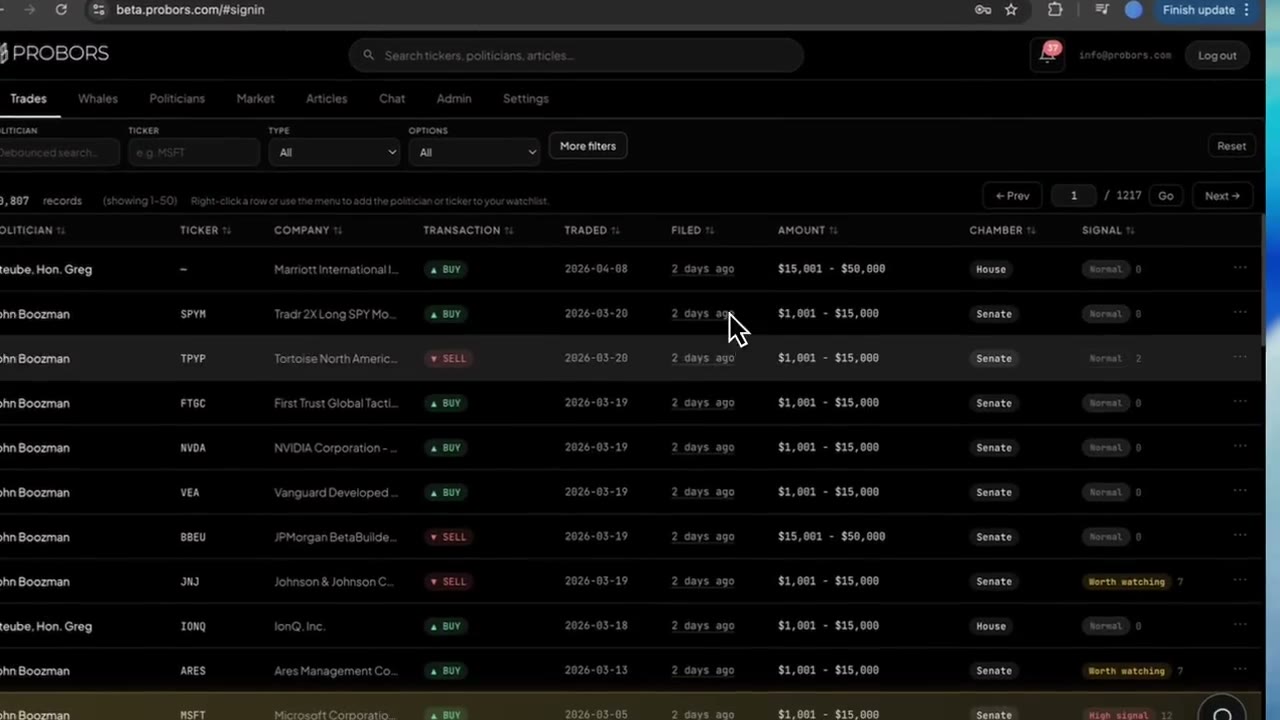
Open an unread row, read the title and message, then Mark read or use Mark all read after your morning pass. Alerts tell you new data arrived in ProBors—not that a politician traded today. Always open the underlying row on Trades or Whales and check transaction date versus filed date before sharing externally.
Pair inbox review with the Whales tab triage workflow when a whale rule fires: confirm notional size, transaction code, and whether multiple insiders cluster on the same symbol.
Step 5: Iterate when noise or silence shows up
| Symptom | Adjustment |
|---|---|
| Too many alerts on liquid mega-caps | Raise minimum trade size or add symbols to Tickers to ignore |
| Duplicate pings on the same story | Enable grouping and shorten the grouping window |
| Missing filings you expected | Lower the minimum size, widen the freshness hours, or confirm the name is on Following |
| Overnight email fatigue | Switch How often from Immediate to Daily and keep Immediate only on a second, high-signal rule |
Duplicate rules are fine when intents differ—one Immediate rule for whale rows above $1M and a Daily digest for insider trades above $250k on your watchlist names. Pause individual rules with the toggle instead of deleting them when you want to test a quieter profile.
What notification preferences do not do
Alert rules do not score trades for you, predict returns, or replace reading the original filing. They do not cover congressional PTR rows unless those rows also match your watchlist and rule type—politician follows still matter for STOCK Act work even when your active rule targets insider or whale streams only.
A notification means ProBors ingested a row that met your filters. Filing lag, amount brackets, and parsed fields still need the same verification you would apply on a manual Trades tab scan.
FAQ
Do I need a rule if I only follow politicians?
Politician watchlist entries can generate alerts when new chamber filings land. Rules still help cap volume if you follow many members or want size filters on overlapping insider activity. Start with Following, add one Both rule with a daily cap, then tighten.
What is the difference between Insider trade and Whale transaction?
Insider trade maps to standard Form 4 insider activity in the feed. Whale transaction targets larger notional prints—the same distinction you see when browsing the Whales tab. Choose Both when you want either type to count.
Will pausing rules stop watchlist tracking?
No. Following entries remain; pausing a rule or flipping All rules off only stops notifications. You can still browse Trades and Whales manually.
Does the bell show the same items as Settings Inbox?
Yes—the bell polls unread count and lists recent notifications. Mark-read actions sync between the dropdown and the full Inbox tab.
Can I test a rule before relying on it?
Each saved rule has a Test action. If your environment returns a not-implemented response, rely on a live filing on your watchlist and confirm it appears in Inbox after the next ingestion cycle. Check probors.com/status when alerts seem delayed.
Tune alerts instead of scrolling the full feed
Sign in to ProBors, open Settings → Notifications, and pair focused rules with the Trades and Whales tabs for verification.
Get startedRelated reading
- ProBors watchlist alerts — what to follow and the four-step inbox habit
- ProBors Whales tab guide — filters and sorting when a whale alert fires
- How to triage whale transactions on ProBors — checklist after a large insider print
- How to build a disclosure research watchlist — keep Following lists manageable
Sources
- SEC Form 4 overview — insider transaction reporting
- House Clerk financial disclosure (STOCK Act) — periodic transaction reports
- Senate financial disclosure search — Senate periodic transaction reports
- Rows were checked in ProBors and should be verified against the original filing.
- Ingestion health: probors.com/status
Sources & methodology
Last updated:
ProBors uses public disclosure records, SEC filings, House and Senate financial disclosure portals, market data, and in-product workflow checks. Articles are written as research education, not investment advice.