The ProBors Chat workspace is the in-app assistant for disclosure questions—congress trades, whale prints, quotes, and charts—without leaving the dashboard. Open the Chat tab for a full thread view, or use the floating composer on Trades, Whales, Market, and other tabs when you only need a quick answer. Two modes matter: Data chat for fast, tool-grounded lookups with live tables, and Research for longer synthesis with markdown and downloadable exports. This guide covers the layout, modes, history, and file upload. It is a product walkthrough, not investment advice.
Quick answer
Click Chat in the dashboard header (or expand the floating bubble on any other tab). Toggle Data chat when you want streaming answers backed by ProBors disclosure and market tools; switch to Research when you need a deeper write-up with artifacts. Signed-in users see a Chats sidebar to reopen, rename, or delete past threads. Press the + button beside the composer to upload a PDF, CSV, or image for analysis—the app switches to Chat automatically. If credits run out, a banner points you to Settings for subscription and top-up options.
Where Chat fits in the dashboard
ProBors splits hands-on screening from open-ended questions:
| Surface | Best for |
|---|---|
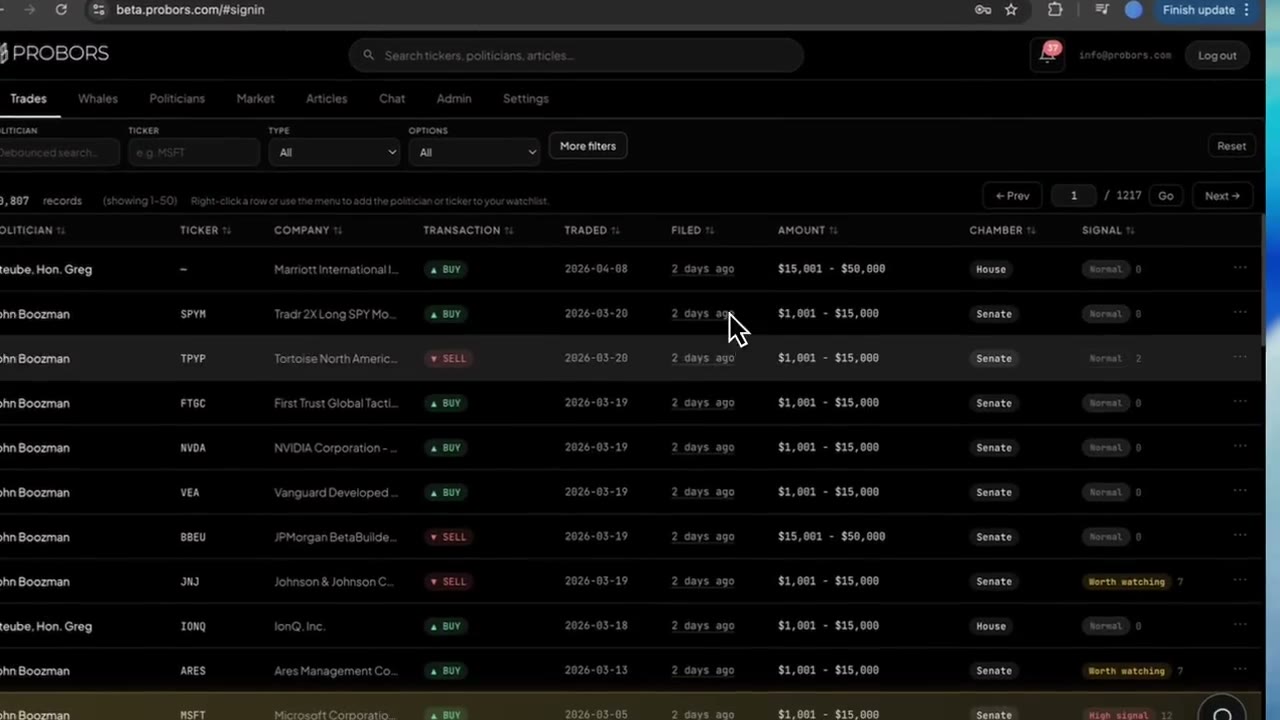
| Trades tab | Sortable House and Senate STOCK Act feed |
| Whales tab | Large insider Form 4 prints by notional size |
| Market workspace | One ticker with chart markers and tables |
| Chat workspace | Natural-language questions across all of the above |
Use tabs when you already know the filter set. Use Chat when you are exploring—“Which tickers did Congress buy most in the last two weeks?” or “Chart NVDA daily prices for six months with recent disclosure markers.” The AI research assistant overview lists strong prompt patterns; this guide focuses on where those prompts run and how the two modes behave.
Step 1: Open Chat or the floating composer
Full workspace: select Chat from the header. The layout includes a scrollable thread, mode toggle, composer, and (when signed in) a conversation sidebar on desktop.
Quick question from another tab: look for the floating chat bubble at the bottom of Trades, Whales, Politicians, Market, or Portfolios. Type there and send—the app can route you to the full Chat tab for a longer back-and-forth. The same Data chat / Research toggle appears in both places.
On an empty thread, starter chips such as “Which tickers are most traded by congress right now?” send a first message with one click.
Step 2: Choose Data chat vs Research
The mode switch sits directly above the composer:
| Mode | Label hint | Typical output | Best when |
|---|---|---|---|
| Data chat | Fast answers from live ProBors data | Streaming text plus inline tables and charts; tool steps visible while the answer builds | Morning scans, ticker lookups, watchlist summaries, “show me a table of…” |
| Research | Deeper AI research and synthesis | Markdown narrative, structured blocks, optional CSV export cards, follow-up suggestions | Memos, cross-source synthesis, longer briefs you might save or share |
Data chat keeps conversation history when you are signed in—each new message in a thread builds on prior context. Research runs as a self-contained query better suited to one-shot or follow-up memos.
Practical habit: start in Data chat for factual pulls (politician, ticker, date window). Move to Research when you need prose that ties congress activity to insider flow or market context across several symbols.
Step 3: Read tables, charts, and tool traces
Assistant replies can include:
- Tables — politician, ticker, transaction type, traded date, filed date, amount bracket, estimated value when available
- Charts — price series or comparison views rendered inside the thread
- Tool trace — short labels showing which ProBors lookups ran (congress search, whale query, quote fetch)
Treat tables as a starting point. Click through to the Trades tab or Whales tab to sort the full feed, then open the disclosure context window to verify transaction vs filing dates before citing a row externally.
Step 4: Manage conversation history
When signed in, the left Chats sidebar lists saved threads:
- New chat — clears the composer and starts a fresh Data chat thread
- Open — reloads messages from a prior session
- Rename — edit the auto-generated title after a long thread
- Delete — remove a thread permanently
On narrow screens, open Chats from the header button to slide the history panel over the thread. History applies to Data chat; Research queries are better saved by exporting any download card the assistant offers.
Step 5: Upload a filing or spreadsheet
Press the + icon left of the composer (or use the same control on the floating bubble). Accepted formats include PDF, CSV, and common image types. After you pick a file, ProBors switches to the Chat tab and posts an analysis of the document—useful for a PTR PDF, a exported disclosure sheet, or a watchlist CSV you want summarized.
File analysis is separate from live disclosure search: it explains that document, not the full ProBors database. Cross-check any tickers or dates against Trades, Whales, or the original .gov filing.
Credits and when Chat pauses
Chat draws from your monthly AI allowance. When credits reach zero, the composer disables and a banner links to public pricing and Settings → Plan & billing for top-up. Browsing Trades and Whales still works; only AI sends are blocked until you add credits or your plan renews.
Common mistakes
- Asking Research mode for a simple table — Data chat is faster and keeps thread history.
- Treating chat tables as final citations — always verify filing lag and amount brackets in the context window or source PDF.
- Ignoring the mode toggle mid-thread — switching modes changes how the next message is processed; start a new chat if you pivot from a data pull to a long memo.
- Uploading without a follow-up question — after file analysis, ask a specific next step (“List tickers mentioned” or “Compare these dates to ProBors congress rows for NVDA”).
FAQ
What is the difference between Data chat and Research?
Data chat streams tool-grounded answers with live ProBors rows and is designed for interactive threads. Research returns a fuller markdown brief with optional export cards—better for synthesis than quick sorting.
Does Chat replace the Trades or Whales tabs?
No. Chat answers questions; tabs let you filter, sort, and scan the full feed. Use Chat for discovery, then pin filters on Trades or Whales for repeat monitoring. Pair with watchlist alerts when you want push-style notifications.
Can I ask about my watchlist in Chat?
Yes. Signed-in users can ask what hit their watchlist recently or summarize alerts for followed tickers and politicians. The assistant can reference your Following list—still verify each row in the source filing.
Where do conversation exports go?
When Research mode produces a dataset, an Export ready card may appear with a download link and row count. Downloads are time-limited; save the file locally if you need it later.
Is Chat output investment advice?
No. ProBors Chat presents disclosure and market facts for research context. It does not recommend buying or selling securities.
Ask disclosure questions in plain English
Sign in at probors.com, open Chat, and start with Data chat for live congress and insider tables—then switch to Research when you need a longer brief.
Get startedRelated reading
- ProBors AI research assistant — example prompts and watchlist-aware questions
- ProBors Trades tab guide — screen House and Senate rows after Chat surfaces a name
- ProBors Whales tab guide — triage large insider prints Chat mentions
- How to combine congress and insider research — workflow after Chat links both streams
Sources
- SEC Form 4 overview — insider transaction reporting
- House Clerk financial disclosure (STOCK Act) — periodic transaction reports
- Senate financial disclosure search — Senate periodic transaction reports
- Rows were checked in ProBors and should be verified against the original filing.
- Ingestion health: probors.com/status
Sources & methodology
Last updated:
ProBors uses public disclosure records, SEC filings, House and Senate financial disclosure portals, market data, and in-product workflow checks. Articles are written as research education, not investment advice.