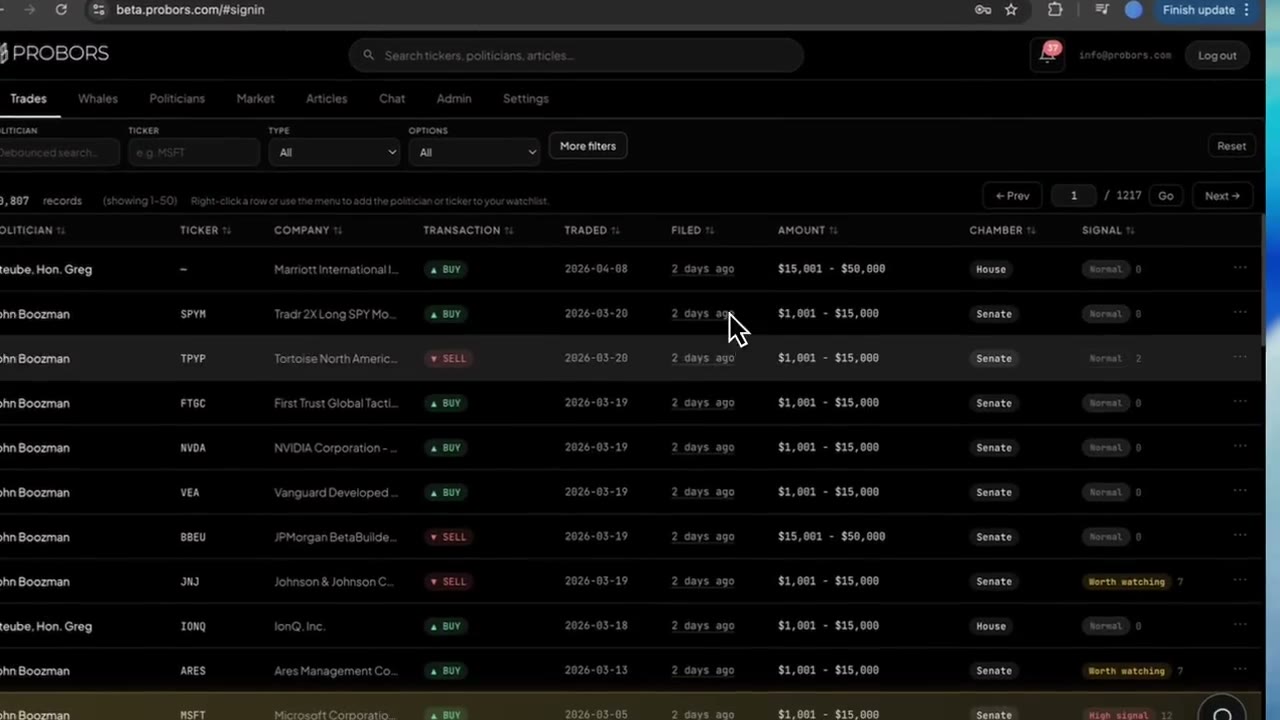
The More filters dialog is the shared advanced panel behind both the Trades and Whales tabs on probors.com. Quick filters in the top bar handle politician, ticker, and buy/sell shortcuts; More filters is where you set date windows, minimum signal scores, sort presets, amount or notional bounds, and chamber-specific asset rules. Active choices appear as removable chips under the bar so you can drop one constraint without resetting the whole screen. This guide walks through the dialog on both tabs—product workflow only, not investment advice.
Quick answer
On Trades or Whales, click More filters, set the fields that match today’s question (recent filing window, minimum signal, largest-value sort), then choose Done. Scan the chip row to confirm what is active, remove a single chip to loosen the screen, or use Clear all / Reset when you are starting a new scan. Click a surviving row to open the disclosure context window and verify traded vs filed dates on the official form.
Where More filters fits in the dashboard
ProBors keeps “fast” and “deep” filtering separate on purpose:
| Layer | What it controls |
|---|---|
| Top bar | Politician or insider name, ticker, direction shortcuts, options toggle (Trades), P+S market (Whales) |
| More filters | Dates, size bounds, signal floor, sort preset, asset or instrument rules, custom SEC codes (Whales) |
| Filter chips | Live summary of every active constraint; click × on one chip to remove just that rule |
The same mental model applies on both tabs: narrow with the bar first, open More filters when you need lag windows or signal triage, then read the table. Tab-specific walkthroughs live in the Trades tab guide and Whales tab guide; this post focuses on the dialog itself.
Step 1: Open More filters from Trades or Whales
- Sign in at probors.com and open Trades (congressional STOCK Act rows) or Whales (large Form 4 insider prints).
- Apply any quick filters you already know—ticker symbol, politician name, or Buys / Sells when direction matters.
- Click More filters in the compact toolbar. The modal opens without leaving the tab or clearing your quick filters.
On Trades, use Options in the top bar before opening the dialog when you want derivative-only or common-stock-only feeds. On Whales, toggle P+S market first when open-market purchases and sales (SEC codes P and S) should exclude grants, exercises, and tax withholdings.
Step 2: Set date windows for filing lag or trade timing
Inside More filters, the Date range control accepts a start and end date. ProBors can filter on trade date or filing date depending on the field label in the dialog—pick the axis that matches your research question:
- Filing date window — “What landed in the public record this week?” Useful for morning scans and weekly disclosure reviews.
- Trade date window — “What activity happened around a hearing, earnings, or headline?” Pair with filing lag habits so you do not confuse when the trade occurred with when it was published.
Use a short window (seven to fourteen days) for daily triage; widen to thirty or ninety days when you study repeat tickers or insider clusters. After Done, the chip row should show the date span so you do not forget which axis you chose.
Step 3: Add signal floors, size bounds, and sort presets
Minimum signal (1–15) hides low-priority rows after ProBors attaches a score. Treat it as a reading queue, not a recommendation—see trade signal scores for how tiers and reason bullets work in the context window.
Sort preset changes which rows float to the top without changing the underlying filter set:
| Preset | Typical use on Trades | Typical use on Whales |
|---|---|---|
| Recent first | Fresh House PTR and Senate batches | Latest Form 4 filings |
| Signal score | Triage when many members filed the same week | Spot unusual insider context flags |
| Largest value | Statutory amount brackets on congress rows | Notional size on insider prints |
Trades-only fields include asset-class presets, custom asset substring, estimated value min/max, and optional price-per-share bounds when you want liquid equities above a floor.
Whales-only fields include company substring, instrument type presets, quantity and value bounds, minimum price per share, and comma-separated SEC codes when you need finer control than the P+S toggle.
Choose Done to refresh the table. The footer shows how many rows match and which page you are viewing when results exceed one page.
Step 4: Read and edit filter chips without losing context
After you close the dialog, every active constraint appears as a chip below the toolbar:
- Remove one chip (for example drop the max-value bound but keep the date window) to widen results incrementally.
- Use Clear all on the chip row when you want a blank slate but stay on the same tab.
- Use Reset in the top bar to clear politician/ticker text and advanced constraints together.
This pattern matters when you pivot from a politician-specific scan to a ticker-wide scan: clear the politician chip, keep the seven-day filing window and minimum signal, then type a new ticker in the bar.
Step 5: Verify rows in the context window and connect to Market
Click any row that survives your filters. The disclosure context window shows traded date, filed date, chamber or SEC code, signal reasons, and a focused price chart.
From there:
- Jump to the Politicians profile when the row is congress-specific and you need history beyond the current filter set.
- Open Market workspace on the ticker when you want congress and insider markers on one chart—see the market workspace guide.
- Add the politician, insider, or ticker to your watchlist when the filter set should become a standing alert.
If the table is empty, check ProBors data status before assuming no filings exist—ingest delays can make a tight filing-date window look blank on slow Senate days.
Common mistakes when using More filters
- Stacking conflicting rules — A very high minimum signal plus a narrow max-value band can zero out results. Relax one chip at a time.
- Forgetting which date axis is active — A trade-date window around mid-September can still show rows filed in October; always read both dates in the context panel.
- Treating sort as a filter — Largest value reordering does not hide small rows unless you also set min/max bounds.
- Skipping official PDFs — Filters only narrow what ProBors already ingested; citations for publication still require the House, Senate, or SEC source form.
FAQ
Is More filters the same on Trades and Whales?
The layout is shared (dates, signal floor, sort presets, chips), but field names differ. Trades emphasizes asset class, statutory amount brackets, and congressional options toggles. Whales emphasizes SEC codes, notional value, quantity, and instrument type. Open the Trades or Whales tab guide when you need column-by-column detail.
How do I filter to large congressional trades only?
On Trades, open More filters and set Min estimated value (and optionally Max estimated value) to the bracket band you care about. Combine with amount bracket literacy so you interpret rows correctly.
Can I save a filter preset for tomorrow?
ProBors does not yet offer named saved screens inside the dialog. Use watchlist alerts for recurring politician or ticker coverage, and rebuild date windows each session—or note your chip combination in a research memo.
Does minimum signal hide rows with no score?
Rows without an attached score may disappear when a minimum signal is set. Clear the signal chip if you need every filing in a date window regardless of score.
Where do options-only congress rows get filtered?
Use the Options dropdown in the Trades top bar (Options only or Exclude options) before or after More filters. For derivative field detail, see the congress options and derivatives guide.
Screen disclosures with precision on ProBors
Open Trades or Whales, use More filters for dates and signal floors, then verify each row in the disclosure context window.
Get startedRelated reading
- ProBors Trades tab guide
- ProBors Whales tab guide
- How to filter congress trades by signal score
- How to screen congress trades by filing lag
Sources
- House Clerk Financial Disclosure search — official House PTR filings
- Senate Financial Disclosures (eFD) — official Senate periodic transaction reports
- SEC Form 4 overview — insider transaction reporting
- ProBors data status — ingestion health for congress and insider feeds
- Rows were checked in ProBors and should be verified against the original filing.
Sources & methodology
Last updated:
ProBors uses public disclosure records, SEC filings, House and Senate financial disclosure portals, market data, and in-product workflow checks. Articles are written as research education, not investment advice.