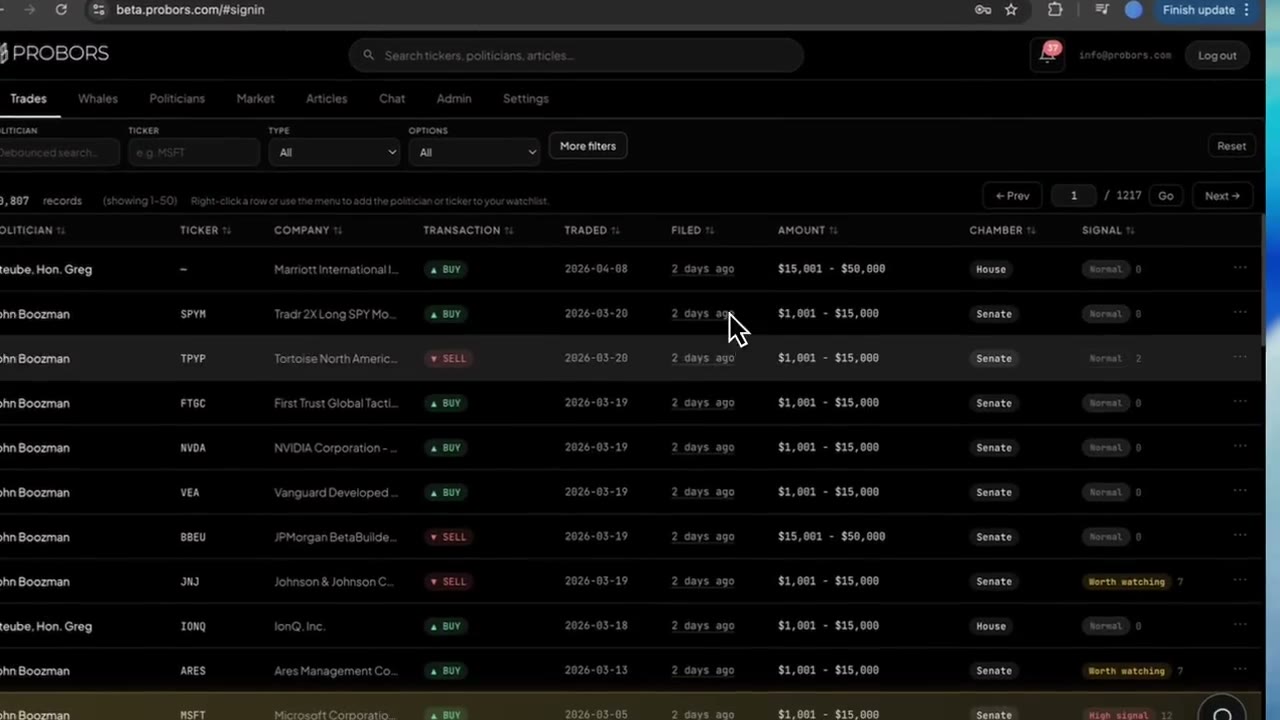
You do not need to open a separate settings screen every time you decide to track a politician, ticker, or insider. On the Trades, Whales, and Market tables in ProBors, each row includes a compact ··· watchlist menu—and you can right-click the row for the same panel. Add or remove a follow in one click, confirm with a brief toast, then tune alert rules later under Settings → Notifications. This guide walks through the row-level follow workflow so your watchlist grows while you verify filings, not during a separate admin session. This is a product walkthrough, not investment advice.
Quick answer
Sign in at probors.com, open Trades, Whales, or Market, and look for the ··· column at the right edge of each data row. Click it to see follow options for that line—on congressional rows you can watch the Politician and/or Ticker; on insider rows you can watch the Insider and/or Ticker. Choose Add when the state reads Not watching; choose Remove when it already says Watching. A short confirmation toast appears at the bottom of the screen. Pair row follows with notification preferences so new matches land in the notification inbox instead of forcing you to re-scan the full feed.
Where the row watchlist menu appears
The same menu component loads across the main disclosure tables:
| Tab / view | What you can follow from one row |
|---|---|
| Trades (congressional feed) | Politician name and ticker symbol |
| Whales (insider prints) | Insider entity name and ticker symbol |
| Market → congressional table | Politician and ticker for that chart-linked row |
| Market → insider table | Insider and ticker for that chart-linked row |
The menu does not replace the disclosure context window—click the row body to verify dates, signal reasons, and chart context first, then use ··· or right-click when you are ready to commit the name to your follow list.
Rows without a usable politician, insider, or ticker symbol hide the menu cell so you are not offered empty actions.
Step 1: Verify the row, then open the menu
A disciplined follow starts with reading the filing, not chasing the button.
- Scan the row in Trades or Whales (or the Market side tables) for transaction type, amount bracket or notional, and filed date.
- Click the row to open the context window when lag, options language, or signal reasons need a closer look.
- When you want ongoing coverage, click ··· on that same row—or right-click anywhere on the row to open the watchlist panel at your cursor.
Right-click is fastest during a dense morning batch when your mouse is already on the line you verified. The ··· button is easier on trackpads and touch screens.
Step 2: Choose politician, ticker, or insider independently
Congress rows expose up to two follow targets:
- Politician — any new disclosure for that member, regardless of symbol.
- Ticker — congressional activity on that symbol from any member in the feed.
Insider whale rows expose:
- Insider — large prints tied to that reporting person or entity label.
- Ticker — insider activity on that symbol.
You can add one target without the other. Following NVDA on a single Pelosi row does not automatically follow every politician who trades NVDA—that requires a ticker follow. Following the politician without the ticker is the right move when you care about the member’s full portfolio, not one line item.
Each menu line shows Watching or Not watching so you can tell at a glance whether you already track that target.
Step 3: Confirm with the toast and keep scanning
After you add or remove a follow, ProBors shows a short status toast—for example, “Politician Nancy Pelosi added to watchlist” or “Ticker NVDA removed from watchlist.” The toast clears on its own so you can continue down the table without dismissing a modal.
The menu closes after each action. If you need both politician and ticker follows on the same row, open ··· twice and add each target separately.
Busy state disables the menu briefly while the follow request completes; wait for the toast before opening the same row again.
Step 4: Connect follows to alert rules
Row follows add names to your account watchlist; they do not by themselves decide how loud alerts should be.
- Open Settings → Notifications → Following to see every politician, ticker, and insider you collected from tables, profiles, and context windows.
- Open Settings → Notifications → Rules to set minimum trade size, freshness windows, signal floors, and daily caps.
- On filing-heavy mornings, triage matches in the header bell using the notification inbox workflow.
Researchers who skip step 2 often blame “too many alerts” when the follow list is working exactly as designed—the rules layer is where you narrow noise.
Step 5: Combine row follows with profile and context shortcuts
Row menus are the fastest path when you are already in a filtered table. Two companion entry points cover the rest of the dashboard:
- Politician profile — follow from the member header when you pivot from Politicians tab research.
- Disclosure context window — watchlist shortcuts in the modal after you read filing lag and chart context.
Use row follows during Trades or Whales morning scans; use profile and context shortcuts when you deep-dive one name. All paths write to the same follow list.
Common mistakes to avoid
- Following before verifying — a high signal badge is a triage hint, not proof the row belongs on your permanent list.
- Ticker follow when you meant politician — sector-wide ticker alerts are broader than a single member’s activity.
- Expecting instant alerts — STOCK Act and Form 4 filing lag still applies; follows notify you when ProBors ingests a new match, not when the trade occurred.
- Skipping rule tuning — following twenty tickers from row menus without minimum size filters will flood the inbox.
FAQ
Does the row menu work on mobile?
The ··· button is the reliable touch target on smaller screens. Right-click applies on desktop browsers; use the button when touch is your only input.
Can I unfollow from the same menu?
Yes. Open ··· on any row that exposes the target. When the state reads Watching, choose Remove. The toast confirms the removal.
Do row follows sync with the Politicians tab star or follow control?
Yes. Politician, ticker, and insider follows share one account list. Adding from a Trades row appears in Settings → Notifications → Following and on politician profiles for that member.
Will following a ticker alert me about every chamber?
A ticker follow matches congressional and insider activity on that symbol according to your notification rules. It does not filter to House-only or Senate-only unless you add those constraints elsewhere in your research workflow.
Is following the same as adding to a portfolio strategy?
No. Row follows power watchlist alerts. The portfolio strategy builder is a separate virtual basket tool for combining politician snapshots and stocks.
Follow disclosures without leaving the table
Use ProBors row watchlist menus on Trades, Whales, and Market—then tune alert rules so new filings surface in your inbox.
Get startedRelated reading
- ProBors watchlist alerts overview
- ProBors notification preferences guide
- ProBors Trades tab guide
- How to build a disclosure research watchlist
Sources
- House Financial Disclosure reports (STOCK Act)
- Senate Financial Disclosures (eFD)
- SEC Form 4 overview
- Rows were checked in ProBors and should be verified against the original filing.
- Ingestion health for readers: probors.com/status
Sources & methodology
Last updated:
ProBors uses public disclosure records, SEC filings, House and Senate financial disclosure portals, market data, and in-product workflow checks. Articles are written as research education, not investment advice.