The ProBors Portfolios tab is where you combine politician portfolio snapshots with individual stocks, assign source weights, simulate the basket against a benchmark, and monitor new congressional disclosures that touch your saved strategy. It sits between one-off PTR triage on Trades and member-level history on Politicians—a virtual research lab, not a brokerage account. Open Portfolios from the signed-in dashboard at probors.com, click Create portfolio, and walk through the four-step builder. Saved strategies show simulated value, holdings, backtest charts, source activity, and strategy-level alerts in one workspace. This is a product walkthrough, not investment advice.
Quick answer
Click Portfolios in the dashboard header (between Market and Blog). Choose Create portfolio to launch the builder: set name, starting capital, simulation start date, and benchmark; add politician and/or stock sources with weights totaling 100%; configure concentration rules, ticker exclusions, and disclosure alerts; then save. After save, use the five detail tabs—Overview, Holdings, Backtest, Activity, and Alerts—to read simulated performance, edit positions, review history, and triage new filings. Pair the tab with the Politicians directory when you need to confirm a member has a portfolio snapshot before adding them as a source.
Where the Portfolios tab fits
ProBors separates live feeds from portfolio simulation:
| Tab / tool | Primary question |
|---|---|
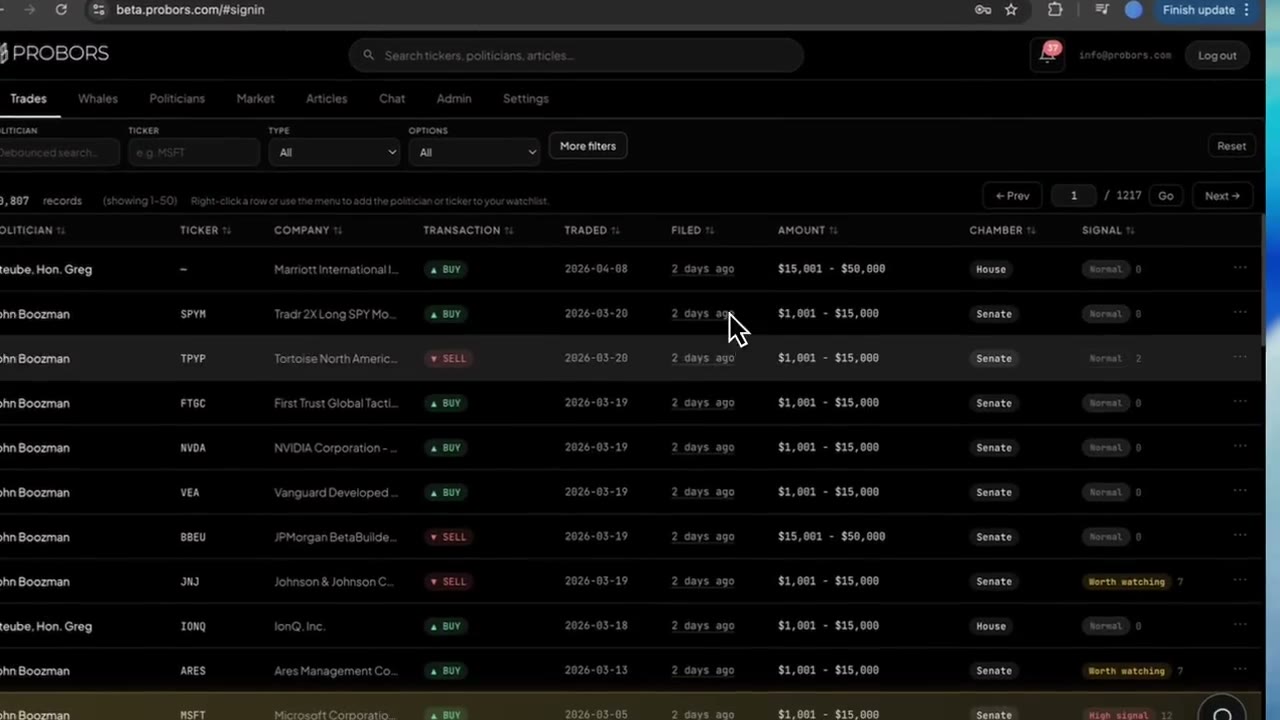
| Trades | What did Congress disclose recently across all members? |
| Politicians | What does one member's disclosure history and snapshot look like? |
| Watchlist + notifications | Did a followed politician or ticker file something new? |
| Portfolios | What would a weighted basket built from these politicians and stocks look like—and what new disclosures match it? |
Use a politician profile when you study one member. Use a watchlist when alerts on individual names are enough. Use Portfolios when you want custom source weights, concentration limits, benchmark comparison, and strategy-scoped disclosure alerts in one saved object.
For a deeper feature tour of the builder fields and AI-assisted edits, see the portfolio strategy builder walkthrough. This guide focuses on the tab navigation and daily workflow inside the signed-in dashboard.
Step 1: Open Portfolios and create your first strategy
After sign-in, click Portfolios in the header. The index view shows:
- A page title and short description ("Disclosure strategy lab")
- Create portfolio in the top-right corner
- A sidebar list of saved strategies when you already have one or more
If the list is empty, the empty state explains the three pillars—combine Congress and stocks, control weights and exclusions, test against the market—and offers Build my first portfolio.
Click Create portfolio (or the + icon on the sidebar). The builder opens as a modal with four steps across the top: Basics, Sources, Rules & alerts, and Review.
Step 2: Walk through the four-step builder
Basics — Name the strategy, add an optional research thesis, set starting capital in USD, pick a simulation start date, and choose a benchmark (SPY, QQQ, and other listed options). These fields define the virtual account ProBors will simulate—not real money.
Sources — Add one or more weighted inputs:
- Politician — search members who have a portfolio snapshot badge in ProBors. The picker shows disclosure count and distinct tickers; an external-link icon opens that member's portfolio tab for a quick sanity check before you add them.
- Stock — search a listed ticker to allocate a direct position that stays in the strategy regardless of politician holdings.
Source weights must total 100%. Use Redistribute when you add or remove a source and want even splits. Politician sources pull eligible positions from each member's latest snapshot; stock sources stay fixed at the weight you assign.
Rules & alerts — Set research guardrails:
- Max position % — cap any single simulated holding
- Holdings per politician — how many of the largest eligible positions to include from each politician source (1–25)
- Movement alert % — threshold for simulated position drift notifications
- Rebalance frequency — quarterly or other preset cadence
- Excluded tickers — symbols to remove from the resolved basket (type a ticker and press Add)
- Disclosure alerts — toggle in-app and optional email alerts when new congressional filings match strategy holdings
Review — Confirm sources, weights, rules, and alert settings. Save to persist the strategy to your account. Alerts begin on save; historical filings already in ProBors are not replayed as new notifications.
Step 3: Read Overview and Holdings after save
Selecting a saved strategy opens the detail workspace. The header shows the strategy name, a Simulated badge, source count, start date, and action buttons:
- Refresh simulation — rerun analysis after you edit sources or holdings
- Ask AI — send a natural-language summary request to ProBors Chat (when Chat is available in your session)
- Strategy settings — reopen the builder on any step
- Delete — remove the strategy permanently
Overview tab highlights:
- Current value, total return, vs benchmark excess return, and max drawdown metrics
- A performance chart comparing simulated strategy value to the selected benchmark over time
- An Allocation panel with the largest simulated positions, color-coded weights, and unallocated cash percentage
- Quick links to Manage holdings when you want position-level edits
Holdings tab lists every resolved position with target weight, simulated value, profit or loss, price, and which politician or stock source contributed the line. Edit weights or exclusions here, then save. Changes flow back into the simulation on refresh.
Step 4: Use Backtest, Activity, and Alerts for ongoing monitoring
Backtest — Review the longer historical simulation chart and drawdown context. Use it to see how the weighted basket behaved relative to the benchmark over the chosen start date—not as a forecast of future returns.
Activity — A chronological log of source changes: when you added a politician, adjusted a stock weight, or updated rules. Helpful when you return to a strategy weeks later and need to remember what changed.
Alerts — Strategy-scoped disclosure notifications. Unread count appears as a badge on the Alerts tab. Each row summarizes a matching congressional filing tied to a holding in this strategy—politician, ticker, transaction type, and dates in plain language. Mark individual alerts read or triage them alongside your global notification inbox. Strategy alerts complement—not replace—watchlist rules on individual politicians or tickers.
Step 5: Connect Portfolios to your disclosure research loop
A practical weekly rhythm:
- Morning — Scan Trades for fresh PTR and Senate rows (Trades tab guide).
- Mid-week — Open Portfolios → Alerts on each active strategy; click through to verify filing dates and amount brackets on the official disclosure PDF.
- After a large batch — Check whether new politician snapshots appeared on the Politicians tab; add or reweight sources in Strategy settings if your thesis changed.
- Before sharing — Cross-check simulated holdings against politician portfolio gains context and the original House or Senate filing.
When simulation fails to load, use Try again on the error banner or confirm data status shows recent House and Senate ingest before assuming a source is missing.
What this does not prove
A saved ProBors portfolio strategy is a research simulation built from disclosed positions and your chosen weights. It does not:
- Execute trades or move real capital
- Guarantee that politicians will continue holding the same symbols
- Capture every asset class members report (some funds, trusts, and non-equity lines may be excluded from snapshot math)
- Prove that past simulated returns predict future performance
- Replace verification on House Clerk or Senate eFD portals
Treat alerts as pointers to new filings worth reading—not buy or sell signals.
FAQ
Can I mix politicians and individual stocks in one strategy?
Yes. Add at least one Politician source and/or Stock sources in the builder Sources step. Weights must sum to 100%. Overlapping tickers across politicians are merged in the resolved holdings table with combined target weights subject to your max-position rule.
Why does a politician not appear in the source search?
Only members with an available portfolio snapshot in ProBors appear in the politician picker. Open Politicians, search the member, and confirm the portfolio badge. If no snapshot exists yet, follow the member on Trades or your watchlist until ProBors ingests enough disclosure history to build one.
How are Portfolios alerts different from watchlist notifications?
Watchlist alerts fire when a followed politician or ticker matches your global notification rules. Portfolios alerts are scoped to a saved strategy—new congressional disclosures that touch simulated holdings in that basket. You can use both: watchlists for broad monitoring, portfolio alerts for a defined research thesis.
Can I change the benchmark after saving?
Yes. On the Overview tab, use the Compare with dropdown on the performance chart to switch benchmarks (for example from SPY to QQQ). ProBors recalculates excess return against the new benchmark when you save the change.
Is my portfolio strategy shared publicly?
No. Saved strategies are tied to your signed-in ProBors account. Simulated values and alert history are private workspace data—not published blog content or social feeds.
Build a disclosure strategy on ProBors
Combine politician snapshots, simulate against a benchmark, and monitor strategy-level alerts in the Portfolios tab.
Get startedRelated reading
- Build custom portfolio strategies in ProBors — field-by-field builder reference and AI edit workflow
- ProBors politician portfolio gains guide — read TWR returns and benchmark overlays on member snapshots
- ProBors Politicians tab guide — find members with portfolio snapshots before adding sources
- ProBors notification inbox guide — triage alerts alongside strategy notifications
- How to combine congress and insider research — when to pivot from a portfolio holding to Whales or Market
Sources
- House Clerk Financial Disclosure — official House PTR documents underlying politician snapshots
- Senate eFD search — official Senate periodic transaction reports
- STOCK Act (Pub. L. 112-105) — statutory basis for congressional trade disclosure
- ProBors data status — ingestion health for House, Senate, and portfolio snapshot jobs
- Rows and snapshot fields referenced in portfolio simulation should be verified against the original filing on the official disclosure portals.
Sources & methodology
Last updated:
ProBors uses public disclosure records, SEC filings, House and Senate financial disclosure portals, market data, and in-product workflow checks. Articles are written as research education, not investment advice.