The ProBors notification inbox is the daily triage surface for watchlist alerts—not the place where you build rules. After you follow tickers, politicians, or whale insiders and tune filters in Settings, new matches land in the header bell and its dropdown Inbox panel. Open the bell when the unread badge appears, scan titles and matched watchlist names, mark items read once you have reviewed them, and jump to Trades or Whales to verify the underlying filing before you share or act on it. This is a product walkthrough, not investment advice.
Quick answer
Sign in at probors.com, configure Following and Rules under Settings → Notifications (see notification preferences), then watch the top-right bell for an unread count. Click the bell to open the inbox preview—up to 25 recent alerts with title, matched watchlist item, timestamp, and optional message text. Use Mark read on individual rows or Mark all read to clear the badge without deleting your rules. When volume spikes, choose Settings from the panel to tighten minimum trade size, freshness windows, or daily caps. Treat every alert as a pointer to a disclosure row, not a trade signal.
How the inbox differs from alert setup
Researchers often conflate two jobs:
| Task | Where to work |
|---|---|
| Decide who and what to follow | Settings → Notifications → Following |
| Decide which filings are loud enough | Settings → Notifications → Rules |
| Review what fired today | Header bell and Inbox tab |
The watchlist alerts overview explains why to follow names. The notification preferences guide walks through rule fields. This guide covers the repeatable morning loop once alerts are flowing.
Step 1: Watch the bell badge
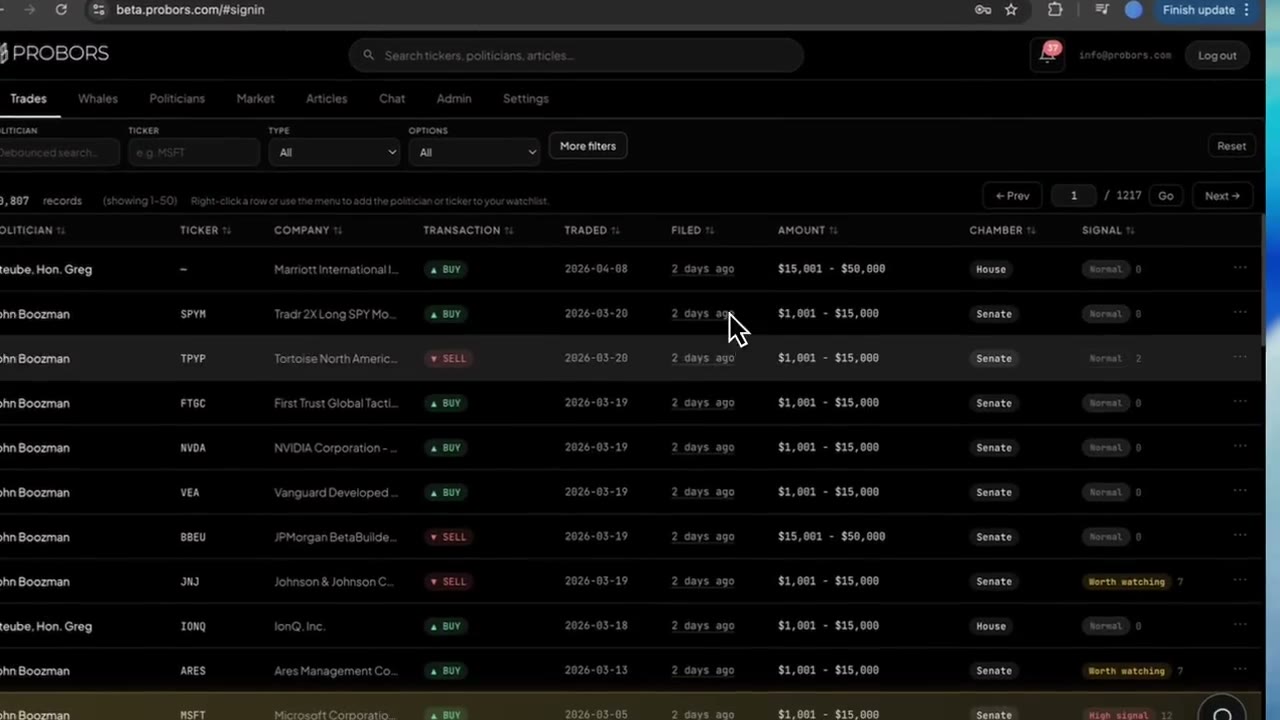
The notification bell sits in the dashboard header on every signed-in tab—Trades, Whales, Politicians, Market, Blog, and the rest.
- A numeric badge appears when unread watchlist notifications exist (capped at 99+ for very busy days).
- The count refreshes automatically about every 45 seconds while you work, so you do not need to reload the page after a filing batch lands.
- No badge usually means either nothing matched your rules recently or you already marked the queue read.
If you expect alerts but see zero activity for days, open Settings → Notifications → Following first—an empty follow list cannot generate inbox rows.
Step 2: Open the inbox dropdown and scan titles
Click the bell to expand the Inbox panel. ProBors loads your most recent notifications (up to 25 per page) with:
- Title — short summary of what matched (insider trade, whale print, politician filing, etc.)
- Item name — the watchlist entry that triggered the alert (ticker symbol, politician name, or whale entity)
- Timestamp — when the notification was created, shown in your local date/time format
- Message — optional extra context when the rule or match supplies one
Unread rows are visually distinct from read rows. Read the title and matched name together—a generic “new insider activity” title is more useful when you see which ticker or insider your rule caught.
While the panel loads, a brief Loading… state appears. An empty panel with No notifications yet means nothing has passed your filters since you last cleared the queue.
Step 3: Mark read without changing your rules
Clearing the inbox is about triage state, not muting future alerts.
- Mark read on one row — dismisses that item from the unread count while keeping it in the list as read.
- Mark all read — marks every unread item on the current page read in one action when you have batch-reviewed a filing morning.
Marking read does not remove the watchlist entry or edit the rule. Tomorrow’s filings that match the same filters will create new notifications. Use mark-read when you have opened the underlying row or decided the alert is not worth a deeper look right now.
The footer line N unread in this page helps when you loaded a long batch and want to confirm nothing is left before you close the panel.
Step 4: Jump to Settings when volume is too high
If the bell badge returns faster than you can verify rows, the inbox is telling you the rules are wider than your review bandwidth—not that ProBors is broken.
From the inbox panel header, click Settings to open Notifications without hunting through menus. Common adjustments:
- Raise minimum trade size so small Form 4 prints stop paging you.
- Shorten the maximum filing age window so stale Senate batches do not replay as “new.”
- Lower max alerts per day to enforce a hard cap during earnings season.
- Split one broad rule into separate insider and whale rules so you can pause one stream.
After you save changes, new alerts follow the updated filters; already-read history stays read.
Step 5: Verify the filing behind each alert
An inbox row is a bookmark, not proof. The disciplined loop:
- Note the ticker, politician, or insider named in the alert.
- Open the Trades or Whales tab and filter or search for that symbol or person.
- Sort by filed date descending to surface the row that likely triggered the notification.
- Click the row to open the disclosure context window—check transaction date vs filed date, amount bracket, chamber or SEC code, and signal reasons.
- Follow the original House PTR, Senate periodic report, or Form 4 link before you cite the trade externally.
For politician-specific alerts, the politician profile guide shows how to read a member’s disclosure history in one screen instead of re-filtering the full congress feed.
Step 6: Use the full Inbox tab for longer sessions
The bell dropdown is built for quick checks. When you need the same list with more room—or you prefer not to work from a floating panel—open Settings → Notifications → Inbox.
The full Inbox tab mirrors the bell preview: read and unread states, mark-read actions, and the same notification titles. Use it when you are doing a weekly backlog review alongside how to run a weekly congress disclosure review.
When to pair inbox triage with other ProBors tabs
| Your alert type | Next stop |
|---|---|
| Congressional STOCK Act row | Trades tab → context window → politician profile |
| Large insider / whale print | Whales tab → context window → optional Market chart |
| Ticker you follow across chambers | Market workspace or ticker cross-chamber workflow |
| Unsure ingestion is current | Data status page at probors.com/status |
Common mistakes
- Treating mark-read as “ignore forever.” It only clears unread state; the next matching filing creates a new alert.
- Acting on the title alone. Headlines omit filing lag, amount brackets, and asset type—open the row.
- Following too many names without caps. Start with a tight disclosure research watchlist, then widen rules only after a week of inbox review.
- Skipping verification on busy days. Mark all read is for rows you actually skimmed, not for avoiding the Trades table.
FAQ
Does the bell show email alerts too?
The header bell and Settings → Notifications → Inbox reflect in-app watchlist notifications. Email delivery depends on your account notification channels configured in Settings—check those templates separately if you rely on inbox email copies.
Why did my badge clear but I still see rows in the list?
Mark read removes items from the unread count, not from history. Read rows stay visible so you can scroll back through what fired recently.
Can I click an inbox row to open the trade directly?
The dropdown focuses on fast scanning and mark-read actions. Use the matched watchlist name to jump to Trades or Whales, then open the disclosure context window from the table row.
How is this different from the public blog or RSS?
The dashboard Blog tab hosts editorial guides like this one. Watchlist notifications fire when live filings match your follow list and rules—they are personalized activity, not published articles.
What if I never set up rules?
Alerts require both Following entries and at least one active Rule. Complete setup in notification preferences before expecting inbox rows.
Triage disclosures faster
Follow tickers and politicians on ProBors, tune alert rules once, then use the header bell to review new filings without reloading every table.
Get startedRelated reading
- ProBors notification preferences — build rules, caps, and filters
- ProBors watchlist alerts — what to follow and why
- ProBors disclosure context window — verify a row after an alert fires
- How to build a disclosure research watchlist — keep the inbox manageable
- How to verify congressional trade disclosures before sharing — checklist before you publish notes
Sources
- STOCK Act — Congress.gov overview — statutory context for congressional disclosure timing
- SEC Form 4 overview — insider transaction reporting
- House Clerk financial disclosure — original PTR source
- Senate financial disclosure search — original Senate periodic reports
- Rows were checked in ProBors and should be verified against the original filing.
- Ingestion health: probors.com/status
Sources & methodology
Last updated:
ProBors uses public disclosure records, SEC filings, House and Senate financial disclosure portals, market data, and in-product workflow checks. Articles are written as research education, not investment advice.