ProBors Chat Research mode can attach a downloadable CSV export when your question needs a structured table of congressional or insider disclosures—not just a short answer in the thread. Sign in at probors.com, switch from Data chat to Research, ask for a bounded list (chamber, date window, ticker, or politician), then use the Export ready card to download the file for spreadsheets, memos, or archival notes. Always re-check key rows on Trades or Whales and against official filings before you publish or post externally. This is a product walkthrough, not investment advice.
Quick answer
Open Chat, toggle Research above the composer, and phrase the request as a table with clear limits—for example, “House purchases filed in the last 30 days for tickers I follow” or “Form 4 whale sales over $1M on NVDA in the last 90 days.” When the run finishes, look for an Export ready block with filename, row count, and Download. Save the CSV locally, spot-check politician names, transaction vs filing dates, and amount brackets, then open the same symbols on Market or the member on Politicians if you need chart context. Data chat is better for quick one-off lookups; Research is the mode meant for longer answers and file artifacts.
Where CSV exports fit in Chat
ProBors Chat has two modes (see the Chat workspace guide):
| Mode | Typical output | CSV export card |
|---|---|---|
| Data chat | Streaming text, inline tables, charts | Uncommon—optimized for speed in the thread |
| Research | Markdown narrative, structured blocks, follow-ups | Yes—when the assistant builds a dataset worth saving |
The export card shows a human-readable filename, optional row count, and a Download button. A Retry control opens the file in a new tab if your browser blocked the first click. Treat the CSV as a working copy of what ProBors returned at query time—not a certified copy of the House Clerk or Senate eFD site.
Exports pair naturally with the verification workflow and the research memo template when you are preparing notes for editors or compliance review.
Step 1: Open Chat and switch to Research
- Sign in and click Chat in the dashboard header (or expand the floating composer on Trades / Whales / Market).
- Above the message box, switch from Data chat to Research.
- Start a New chat if an old Data chat thread is cluttered—Research runs read cleaner on a fresh thread.
Research draws from your plan’s AI allowance the same way other Chat sends do. If the composer is disabled, open Settings → Plan & billing to review credits before you run a large export.
Step 2: Write a prompt that bounds the table
Vague prompts produce vague files. Strong Research requests include:
- Universe — House only, Senate only, or both; whale insiders vs congressional rows
- Time — “filed in the last 14 days,” “traded since September 1, 2026,” or “most recent 25 rows”
- Filters — ticker symbol, politician last name, purchase vs sale, minimum signal tier if you use scores in triage
- Columns you care about — politician, ticker, transaction type, traded date, filed date, amount bracket, chamber
Example patterns (adapt to your watchlist):
- “Table of Senate sales filed in the last 21 days for semiconductor tickers; include filing lag in days.”
- “Congressional purchases on AAPL and MSFT filed since August 2026; export as CSV.”
- “Whale insider buys over $500k in the last 60 days, top 20 by notional; CSV export.”
If you only need a five-row sanity check, stay in Data chat first—then rerun in Research when the subset is worth saving.
Step 3: Download and inspect the export card
When Research completes, scroll the reply for:
- Inline summary — prose or markdown explaining what the table contains
- Export ready — filename (often descriptive), row count when available, Download
- Follow-up chips — optional next questions to narrow or widen the set
Click Download and open the CSV in Excel, Google Sheets, or Numbers. Scan for:
- Duplicate lines (same politician, ticker, dates, and amount band)—dedupe before you cite counts
- Missing tickers on bond, bill, or fund lines—use the security description column when present
- Filed dates bunched on one day—common with Senate periodic batches; do not treat every row as “traded that day”
Keep a note in your memo of when you pulled the file and which filters you used so readers know the snapshot age.
Step 4: Verify high-impact rows in Trades or Whales
CSV exports speed up drafting; they do not replace source checks.
- Copy a politician or ticker from the sheet.
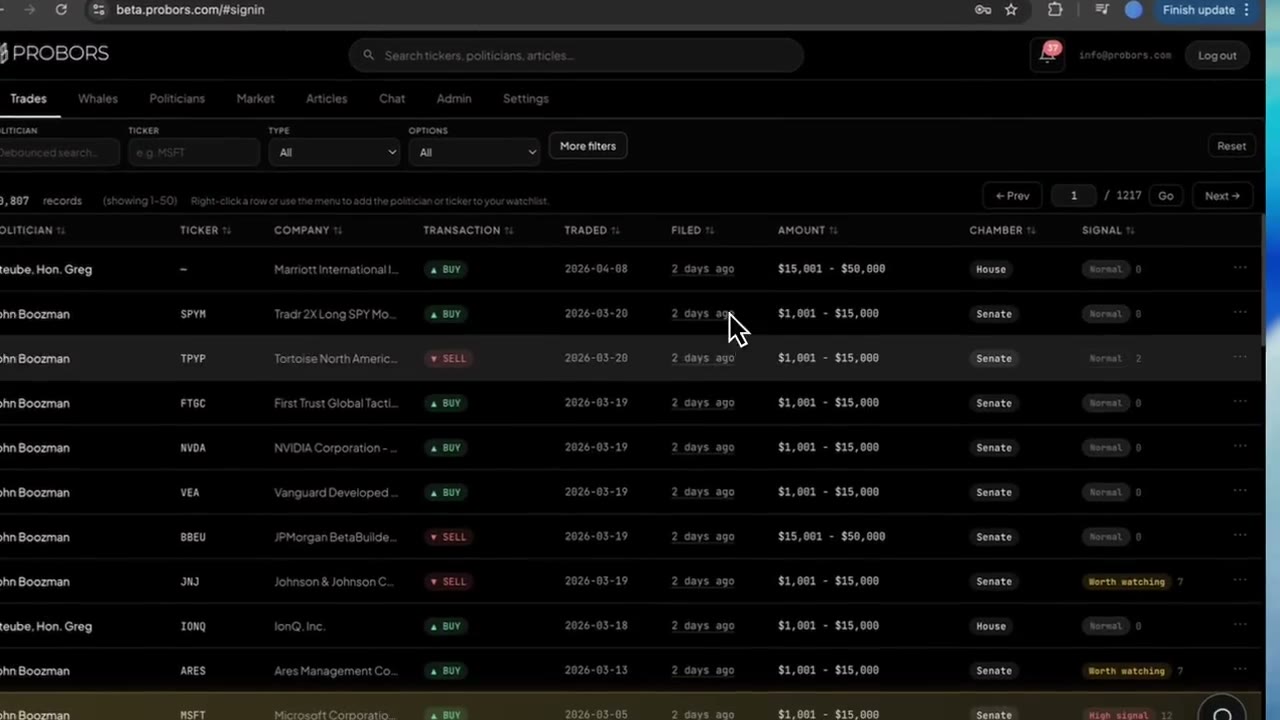
- Open Trades (congress) or Whales (insiders) and search or sort to find the matching row.
- Click the row to open the disclosure context window.
- Compare traded vs filed dates, amount bracket, and owner/spouse codes to the official PDF link when available.
- For tickers you will discuss publicly, open Market to see price context and optional disclosure markers—without treating the chart as a forecast.
If a row fails verification, drop it from your external summary even if it remains in the CSV.
Step 5: Archive responsibly and update later
Store exports in a project folder with a clear name (date + topic). When a new filing batch lands, rerun Research or refresh from Trades rather than reusing an old CSV in a “live” post.
For team handoffs, share the public blog link to this guide plus a verified subset of rows—not the raw export alone—so recipients know to check ProBors data status if ingest lag is unusually high.
Common mistakes
- Using Data chat for a memo-bound dataset — tables may not include a download card; switch to Research.
- Treating row count as “trades today” — counts reflect your filters and ProBors ingest, not real-time exchange volume.
- Skipping chamber — House PTR rows and Senate periodic lines follow different calendars; filter explicitly when the story is chamber-specific.
- Publishing amount brackets as exact dollars — brackets are ranges from the form; see why congressional ranges are not exact dollars.
- Ignoring AI credit limits — a failed or partial run may not produce a file; retry with a smaller window.
FAQ
When should I use Research instead of Data chat?
Use Data chat for fast questions while you screen Trades or Whales. Use Research when you need a narrative plus a CSV you can attach to a memo, editor handoff, or personal archive.
Does every Research answer include a CSV?
No. Small answers or purely explanatory replies may stay in the thread. Ask explicitly for a table “with CSV export” when you need a file.
Can I upload my own CSV to Chat?
Yes—the + control beside the composer accepts CSV uploads for summarization (see the Chat workspace guide). That is separate from downloading ProBors-generated exports.
Are exported rows investment signals?
No. They are structured disclosure rows for research. Signal scores, if shown, are triage hints—verify each line against the source filing.
What if Download fails?
Use Retry on the export card, confirm you are still signed in, and check that your browser allows downloads from probors.com. If the card shows no file URL, rerun with a narrower date window or fewer tickers.
Export disclosure tables from Chat Research
Sign in, switch to Research mode, and download CSV snapshots you can verify on Trades and Whales before you share.
Get startedRelated reading
- ProBors Chat workspace: Data chat vs Research
- ProBors AI research assistant
- How to verify congressional trade disclosures before sharing
- How to write a congress disclosure research memo
- ProBors Trades tab guide
Sources
- House Clerk financial disclosure search — official House PTR source
- Senate eFD search — official Senate periodic transaction reports
- SEC EDGAR — Form 4 and other insider filings
- STOCK Act (Pub. L. 112-105) — statutory context for congressional disclosure
- Rows should be checked in ProBors and verified against the original filing; see ProBors data status for ingest health.
Sources & methodology
Last updated:
ProBors uses public disclosure records, SEC filings, House and Senate financial disclosure portals, market data, and in-product workflow checks. Articles are written as research education, not investment advice.