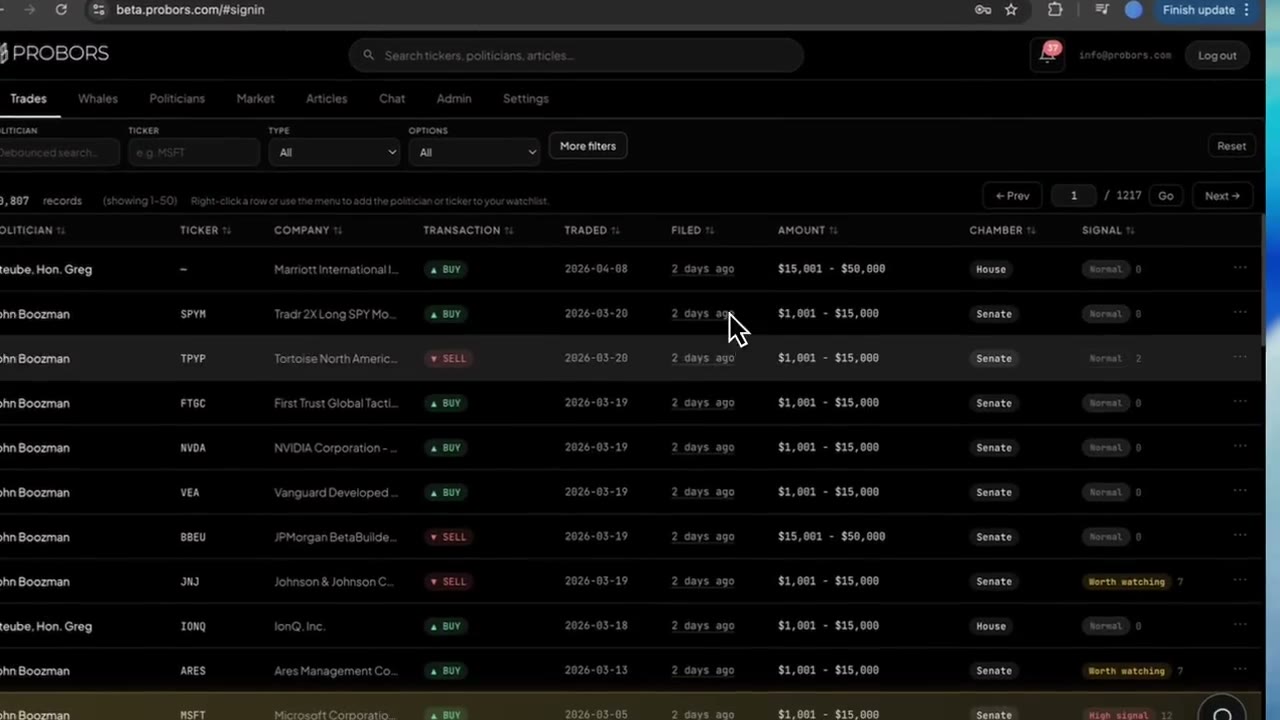
Congressional and insider feeds on probors.com can return hundreds or thousands of rows after you tighten filters. The Trades and Whales tabs show fifty disclosures per page and keep your filter chips active while you move forward, backward, or jump directly to a page number. Use the toolbar counter to see how many rows match, then page through the set without resetting politician, ticker, date, or signal constraints. This guide walks through that pager on both tabs—product workflow only, not investment advice.
Quick answer
Sign in, open Trades or Whales, and apply the filters you need (see the More filters dialog guide when the top bar is not enough). When the match count exceeds fifty, the toolbar shows ← Prev, a page number / total pages field with Go, and Next →. Type a page number and press Enter or Go to jump; use Prev and Next for one-page steps. Your chips and sort order stay in place until you change them. Click any row to open the disclosure context window before you follow a name to your watchlist.
Why pagination matters on disclosure screeners
STOCK Act batches and Form 4 whale screens rarely fit on one screen. Researchers who only read page one often miss older lines in the same filter window—especially when sorting by Largest value or Signal score spreads attention across many pages.
| Toolbar element | What it tells you |
|---|---|
| Total records (cyan count) | How many rows match every active filter |
| Showing X–Y | Which slice of that total is on screen right now |
| Pager controls | How to move within the match set without clearing filters |
| Data status link | Whether ingest delays might explain a surprisingly empty first page |
Pagination is navigation, not a separate dataset. Each page is another fifty rows from the same filtered query you already defined.
Step 1: Narrow the feed before you page
Paging through an unfiltered congress feed is rarely productive. Start with constraints that match your question:
- On Trades, set politician, ticker, buy/sell, or options toggles in the top bar—or open More filters for filing-date windows and minimum signal scores.
- On Whales, set ticker, insider name, P+S market, or direction shortcuts, then use More filters for notional bounds or SEC code lists.
- Confirm the chip row under the toolbar reflects what you intended; remove one chip if the total count is still too large.
For wide politician histories, pair pagination with the politician profile or large batch workflow so you know when a table scan is the right tool.
Step 2: Read the match count and current range
Above the table, ProBors prints the total number of matching records in monospace cyan. When that number is greater than fifty, a muted (showing 1–50) style hint appears on page one—on later pages the range updates (for example 51–100).
Use that range when you take notes: “NVDA House buys, filed last 30 days, pages 2–4 reviewed on October 18, 2026” is more useful than “I scrolled Trades.” If the count is zero, check ProBors data status before assuming no filings exist—tight filing-date windows on slow Senate days can look empty until ingest catches up.
Step 3: Move with Prev, Next, or page jump
The pager sits on the right side of the same toolbar row:
- ← Prev moves back one page and disables on page one or while the table is loading.
- Next → advances one page and disables on the last page.
- Page field / Go lets you type a page number (for example
12), press Enter or Go, and land on that page immediately. Invalid numbers snap back to the current page; out-of-range values clamp to page 1 or the last page.
While results are loading, the jump control disables so you do not stack conflicting requests. Wait for the table to settle before jumping again.
Tip: Sort by Filed descending when you care about freshness, then page forward only until filing dates fall outside your window. Sort by Signal score when you want the highest-attention rows first—often page one is enough, but deep pages still hold mid-tier lines worth a spot check.
Step 4: Keep sort and filters stable across pages
Changing a column sort or opening More filters resets you to page one with the new ordering—that is expected. If you need to compare page 3 before and after adding a minimum signal floor, note the old page number first; there is no “restore previous page” button.
Filter chips persist across Prev / Next / Go moves. That means you can follow a politician-specific screen across ten pages, open three rows in the context window, and return to the same page without retyping the name.
Right-click or use the row ··· menu to add politicians, tickers, or insiders to your watchlist from any page—the row watchlist guide covers that shortcut.
Step 5: Exit the table for exports or cross-tab checks
Pagination covers in-app browsing. When you need a spreadsheet artifact:
- Use Chat Research exports for bounded tables you can download and archive.
- Switch to Market on a ticker after you spot a line on page four of Whales.
- Open Politicians when a member appears on multiple pages and you want KPIs beyond the current sort.
Those paths complement paging; they do not replace verifying individual rows on the official House, Senate, or SEC source forms.
Common mistakes when paging long feeds
- Assuming page one is the full story — high-signal or large-value sorts still distribute rows across many pages.
- Jumping pages during load — wait for the spinner to finish so the page field matches the rows you see.
- Forgetting sort resets page — tightening filters after you reached page 8 sends you back to page 1; that is normal.
- Treating the toolbar count as a trading signal — it is only “how many rows match,” not materiality or intent.
- Skipping source PDFs — pagination helps you browse ProBors; publication still requires the original disclosure.
FAQ
How many rows does each page show on Trades and Whales?
Both tabs load fifty matching disclosures per page. The toolbar range updates so you always know which fifty you are viewing.
Does jumping to a page change my filters?
No. Page navigation keeps politician, ticker, date, signal, and chip constraints. Only changing filters, sort, or Reset alters the match set.
Why is the page jump control grayed out?
The jump field disables when there is only one page of results or while a load is in progress. Wait for loading to finish or widen filters if the total is fifty or fewer.
Can I page through results on the Market tab tables?
The Market workspace shows shorter default windows for congress and insider tables tied to one ticker. For market-wide screens with full pager controls, use the dedicated Trades and Whales tabs.
What should I do if the count looks too low?
Open data status, loosen the filing-date chip by a few days, and confirm chamber-specific ingest notes. See the data status page guide for how to read each line.
Scan the full match set
Sign in at probors.com, filter Trades or Whales, then use the pager to review every page before you cite a disclosure externally.
Get startedRelated reading
- ProBors Trades tab guide
- ProBors Whales tab guide
- ProBors More filters dialog
- How to research large congressional disclosure batches
Sources
- House Financial Disclosure (Clerk of the House)
- Senate eFD search
- SEC Form 4 overview
- STOCK Act (S. 2038, 112th Congress)
- Rows were checked in ProBors and should be verified against the original filing.
- Ingest timing: probors.com/status
Sources & methodology
Last updated:
ProBors uses public disclosure records, SEC filings, House and Senate financial disclosure portals, market data, and in-product workflow checks. Articles are written as research education, not investment advice.