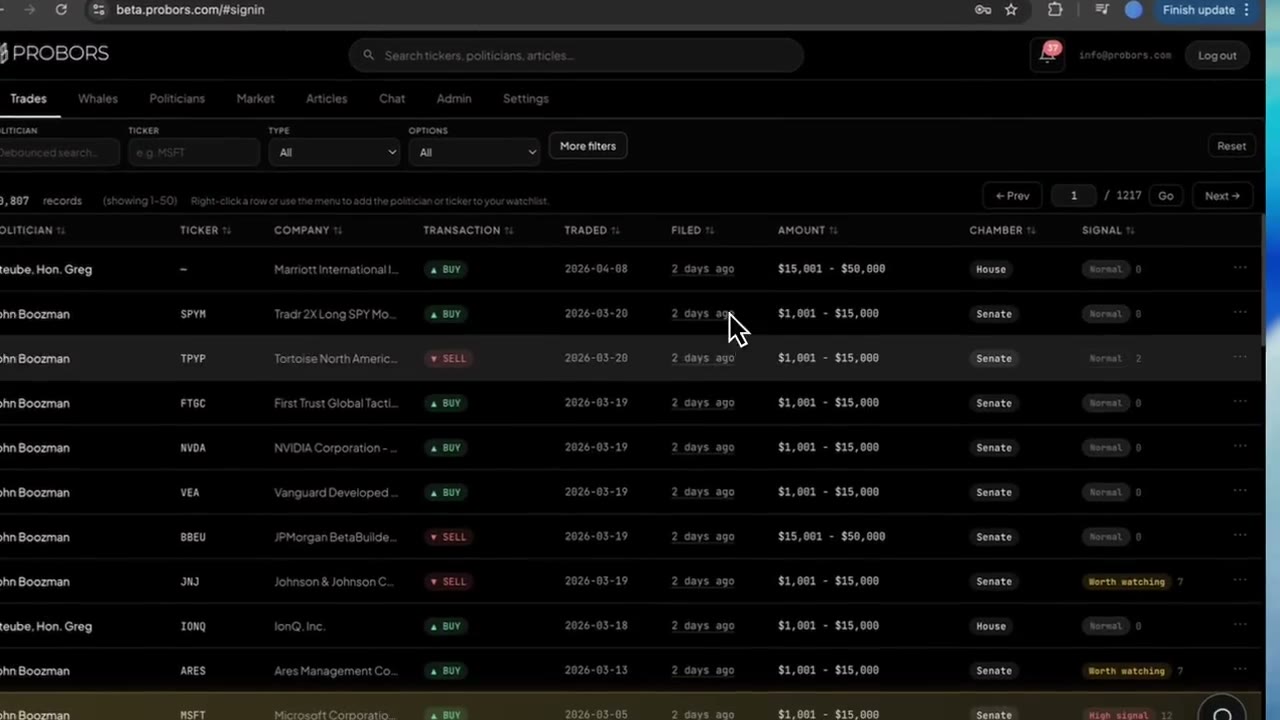
The Trades tab on probors.com gives you two ways to reorder congressional rows: click a column header for a precise sort on one field, or pick a sort preset inside More filters when you want a default reading queue. Headers are best when you already narrowed the feed and need filed date, trade date, amount bracket, or signal score on top; presets are best when you are opening the tab cold and want recent filings, high-context rows, or larger statutory brackets first. This guide walks through both paths so you spend less time fighting the table during morning STOCK Act triage. This is a product walkthrough, not investment advice.
Quick answer
Sign in, open Trades, apply politician or ticker filters if you know them, then choose your sort strategy. For “what landed in the record this week,” click the Filed header until the newest disclosures float up (or use More filters → Sort preset → Recent first). For “what happened around a hearing or earnings,” sort on Traded after you set a trade-date window. For triage when the feed is noisy, use Signal header sorting or the Signal score preset, then open each row in the disclosure context window. When results span multiple pages, keep the same sort while you page through the feed.
Column headers vs More filters presets
ProBors intentionally separates “which rows match” from “which rows appear first.”
| Control | What it changes | Best when… |
|---|---|---|
| Column header click | Ascending or descending sort on that single column (politician, ticker, traded date, filed date, amount, chamber, signal) | You already applied filters and want fine control without reopening the dialog |
| Sort preset in More filters | Server-side ordering tuned for disclosure research (Recent first, Signal score, Largest value) | You are starting a scan or want a consistent default queue across sessions |
| Filter chips | Which rows are eligible—not the sort order | You removed one constraint but want to keep the same header sort |
Presets and headers can feel similar on Filed and Recent first, but they are not interchangeable after you combine constraints. A ticker filter plus Largest value preset surfaces big brackets even when individual header sorts would bury small lines on page five.
Step 1: Narrow the feed before you sort
Sorting ten thousand unfiltered congress rows rarely answers a research question.
- Open Trades from the dashboard header.
- Set Politician or Ticker when you already know the subject.
- Use Buys, Sells, or Options toggles when direction or derivative lines matter.
- Open More filters for filing-date or trade-date windows when the question is time-bound—see filing date vs transaction date habits if you are unsure which axis to pick.
- Confirm the chip row under the toolbar reflects your intent before you touch column headers.
Empty or tiny result sets after sorting usually mean filters are too tight, not that sorting failed. Check probors.com/status when a normally busy week returns zero House rows.
Step 2: Sort by filed date for fresh public batches
Morning scans should prioritize when the disclosure became public.
- Click the Filed column header until the relative labels show the newest filings at the top (descending filed date).
- Scan chamber badges so House PTR batches do not hide behind slower Senate lines on the same page.
- Click a row to read trade date, filing lag, and amount bracket in the context window before you watchlist a name.
If you prefer a one-click default, open More filters, choose Sort preset → Recent first, and press Done. Pair either approach with a short filing-date window inside the dialog when you only want the last seven to fourteen days.
Step 3: Sort by trade date for event-driven questions
When your anchor is a committee hearing, bill markup, or earnings week, traded date ordering matters more than filing order.
- Set a trade-date range in More filters so the feed excludes unrelated years.
- Click the Traded header to sort ascending when you want chronological activity through the event window, or descending when you care about the latest transaction inside that window.
- Read Filed as a secondary column—long Senate lag can make a trade from early autumn appear on a filing dated weeks later.
This is the same discipline described in how to screen congress trades by filing lag; sorting by trade date does not remove lag—it only reorders the rows you already filtered.
Step 4: Sort by amount or signal when triaging a busy week
After a dense House release day, volume—not novelty—becomes the problem.
- For statutory bracket size, click Amount or choose More filters → Sort preset → Largest value when you want the biggest disclosed bands first.
- For ProBors context flags, click Signal or choose Sort preset → Signal score—rows with higher scores and Worth watching-style labels rise to the top.
- Hover or open the context window to read reason bullets behind the score; tiers are a reading queue, not a recommendation. See trade signal scores for how labels are meant to be used.
- Optionally set Min signal in More filters to hide low-priority noise, then sort remaining rows by Filed so fresh high-context lines still surface.
High-signal row highlighting in the table is a visual nudge—always verify the underlying PTR or Senate PDF before you share a row externally.
Step 5: Combine header sorts with pagination
Fifty rows per page means sort order defines what you never see on page one.
- Note the total records count in the toolbar after you sort.
- Use Next, Prev, or the page jump field when you sorted by Largest value or Signal—important lines often sit on page two or three.
- Avoid changing sort mid-pass unless you are starting a new question; flipping Filed ascending and descending while paging can make it feel like rows “disappeared” when they simply moved to another page.
The Trades and Whales pagination guide covers jump-to-page behavior while chips stay active.
Step 6: Hand off to verification and watchlist tools
Sorting finds candidates; it does not replace source checks.
- Click a shortlisted row and confirm politician name, owner context, asset type, and amount bracket in the context window.
- Follow the source link to the House Clerk PTR or Senate eFD PDF when the row might appear in a memo or social post.
- Add the politician or ticker from the row menu when ongoing coverage is warranted—see row watchlist shortcuts and notification preferences.
Common mistakes when sorting the Trades table
- Sorting before filtering — reordering the full congress feed hides the politician you care about on page forty.
- Using filed sort for hearing-week studies — you need trade-date filters plus Traded ordering, not newest filings globally.
- Treating signal order as intent — scores summarize structured context; they do not prove inside information or future returns.
- Ignoring chamber badges after sorting — Senate rows often carry longer lag; a sort that mixes chambers can look like “old” trades when they are simply slow filings.
- Stopping at page one — especially after Largest value or Signal score presets.
What this does not prove
A sorted table does not show every disclosure ever filed, predict market moves, or rank politicians by performance. Amount columns reflect statutory ranges, not exact portfolio weights. Filing lag means public readers learned about trades days or weeks after they occurred. Always log both traded and filed dates in your notes and verify material rows on the official government forms.
FAQ
Should I use column headers or More filters sort presets?
Use More filters presets when you want a consistent default (Recent first, Signal score, Largest value) at the start of a session. Use column headers when filters are already set and you want to flip one field—especially Filed vs Traded—without reopening the dialog.
Does sorting change which rows match my filters?
No. Sorting only changes order within the filtered set. Remove or add chips when you want different rows, not when you only want a different ranking.
Can I sort by chamber or politician name?
Yes. Click Chamber or Politician headers when you want alphabetical or grouped scans after you narrowed by ticker or date. Name sorting is useful for memo prep, not for finding the freshest filings—prefer Filed for that.
How does sorting interact with signal scores?
Signal header sorts order by numeric score when scoring is attached. The Signal score preset uses the same backend ordering tuned for triage. Combine either with a Min signal floor when you want fewer, higher-context rows before you page.
Does Whales use the same sorting ideas?
The Whales tab shares More filters, chips, and pagination patterns, but column labels emphasize insider notional and SEC codes. Start with the Whales tab guide when you sort Form 4 feeds instead of STOCK Act rows.
Sort congressional disclosures with confidence
Open the Trades tab on ProBors, pair column sorts with filters, and verify each shortlisted row in the disclosure context window.
Get startedRelated reading
- ProBors Trades tab guide
- ProBors More filters dialog guide
- How to compare filing date vs transaction date
- How to filter congress trades by signal score
Sources
- U.S. House Clerk — Financial disclosure search — official House PTR filings
- U.S. Senate eFD search — official Senate periodic transaction reports
- STOCK Act (Pub. L. 112-105) — congressional financial disclosure framework
- ProBors data status — ingestion health for congress and insider feeds
- Rows were checked in ProBors and should be verified against the original filing.
Sources & methodology
Last updated:
ProBors uses public disclosure records, SEC filings, House and Senate financial disclosure portals, market data, and in-product workflow checks. Articles are written as research education, not investment advice.