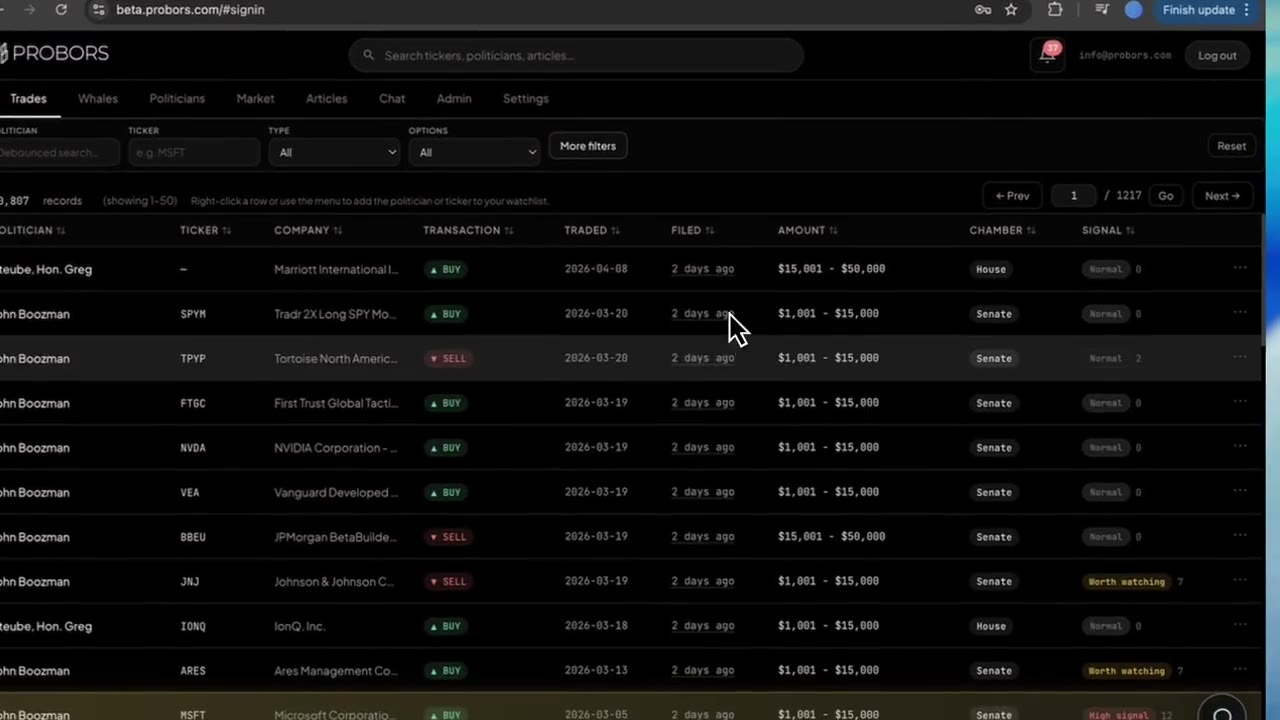
On busy mornings the Congressional trades and Whales tables can show dozens of new rows. Opening the full disclosure context window for every line slows you down. ProBors adds a faster pass: pause your pointer on the green ▲ BUY or red ▼ SELL badge in the type column and a compact flyout appears with the long-form transaction label, security summary, and—when the filing carried them—options strikes, SEC transaction codes, or asset-type notes. Use that preview to decide which rows deserve a click, a source PDF, and a watchlist follow. This is research context, not investment advice.
Quick answer
Sign in at probors.com, open Trades or Whales, and sort or filter the feed the way you already do for filing date or ticker. Hover the side badge on any row that shows extra parsed detail; read the headline line and the labeled fields in the tooltip. When the row looks unusual—options language, a non-equity asset label, or an insider code you do not recognize—click the row for the full panel and open the original filing. Skip opening detail on rows the flyout already explains as routine open-market sales or simple purchases.
Why the hover flyout exists
Table columns compress statutory wording into short badges. A Senate line might read SELL while the underlying form describes a partial sale of a spouse-held position or a call option exercise. The flyout surfaces that longer description without loading charts, signal reasons, or politician navigation.
The same pattern works on Whales, where SEC Form 4 transaction codes and security class labels are easy to misread when you scan only the ticker column. Hover first, click second.
Step 1: Start on Trades or Whales with a narrow feed
- Open Trades for House and Senate STOCK Act rows—see the Trades tab guide for chamber chips and date sorting.
- Or open Whales for large insider prints—see the Whales tab guide.
- Apply one filter so the table is scannable: recent filing date, a watched ticker, or a politician you track.
You can combine this step with column sorting so the newest filings stay at the top while you hover down the list.
Step 2: Hover the BUY or SELL badge
Move your pointer over the colored badge in the transaction-type column (not the ticker cell). When ProBors has parsed detail beyond the badge, a fixed-position tooltip opens above or below the badge depending on screen space.
Congress rows may show:
- A headline with the full transaction wording when it differs from the short badge label.
- Security — fund name, corporate description, or symbol summary when the ticker column is sparse.
- Asset — asset type text from the disclosure.
- Option, Strike, Exp, Contracts, Shares — when the row is options-related.
- Short Desc or Notes excerpts when the ingest preserved narrative fields.
Whale rows may show:
- A headline derived from the filed transaction description.
- SEC — the transaction code ProBors displays for triage.
- Security — short and long security class labels when both are present.
If nothing extra was parsed, the badge still shows buy/sell direction but no flyout appears—treat that as a hint the row is structurally simple or the upstream batch omitted extended fields.
Step 3: Decide click vs skip
Use a simple triage rule:
| Flyout suggests… | Typical next step |
|---|---|
| Plain open-market purchase or sale on a liquid ticker | Note the row; open detail only if signal score or size rules flag it |
| Options, bonds, municipal, or fund language | Click for options and derivatives context and verify on the official form |
| Unfamiliar SEC code on a whale line | Click, read the context window hero strip, then open the SEC filing link |
| Missing flyout on a large bracket row | Click anyway—amount alone may justify verification |
Congress rows also show a Detail control beside the badge on some layouts; clicking it opens the same context window as clicking elsewhere on the row. Hover is optional; Detail is for touch-first workflows.
Step 4: Open the context window only for survivors
After a hover pass, click the remaining rows to review filing lag, signal reasons, price chart, and Open original disclosure or Open original SEC filing links. Pair that with how to verify congressional trade disclosures before sharing when the flyout showed amended or options-heavy language.
Add politicians or tickers to your watchlist only after detail review—not from hover text alone.
Step 5: Fold hover triage into a daily rhythm
A five-minute loop many researchers use:
- Sort Trades by filed date descending.
- Hover the first ten badges; star or note any options or odd asset types.
- Open detail on three to five survivors; verify one source PDF.
- Switch to Whales on the same ticker if you care about insider overlap—hover SEC codes before opening every whale row.
- Log tickers that need a follow-up session in Market or Chat—not every hover warrants a chart deep dive.
What this does not prove
Hover text is parsed metadata for triage. It is not the signed House PTR, Senate periodic report, or Form 4. Truncated descriptions in the flyout may end with an ellipsis; the context window and official PDF hold the full wording. A missing flyout does not mean the trade is immaterial, and a crowded flyout does not prove insider knowledge or future price moves.
FAQ
Does the hover flyout work on mobile?
Flyouts rely on pointer hover. On phones and tablets, tap the row to open the disclosure context window instead of expecting a tooltip.
Can I use hover previews on politician profile tables?
Yes. The same badge component appears on disclosure rows inside politician profiles—the flyout content matches the main Trades feed for that row.
Do signal scores appear in the flyout?
No. Signal tier and reasons load in the context window after you click. Use hover for transaction shape; use the panel for scoring and charts.
Why does one row show options fields and a neighbor does not?
Options metadata appears only when the upstream disclosure carried structured option fields ProBors could parse. Equity-only lines stay on Security and Asset lines.
Is hover text enough to cite in an article?
No. Cite the official filing. Hover content helps you choose which PDF to open, not what to publish without verification.
Skim faster, verify what matters
Use ProBors Trades and Whales hover flyouts to queue rows, then open detail and official filings for the lines that survive your rules.
Get startedRelated reading
- ProBors disclosure context window guide
- ProBors Trades tab guide
- How to triage whale transactions on ProBors
- ProBors congress options and derivatives guide
Sources
- U.S. House Clerk — Financial Disclosure
- U.S. Senate eFD search
- SEC Form 4 overview
- Rows were checked in ProBors and should be verified against the original filing.
- Ingestion health: probors.com/status
Sources & methodology
Last updated:
ProBors uses public disclosure records, SEC filings, House and Senate financial disclosure portals, market data, and in-product workflow checks. Articles are written as research education, not investment advice.