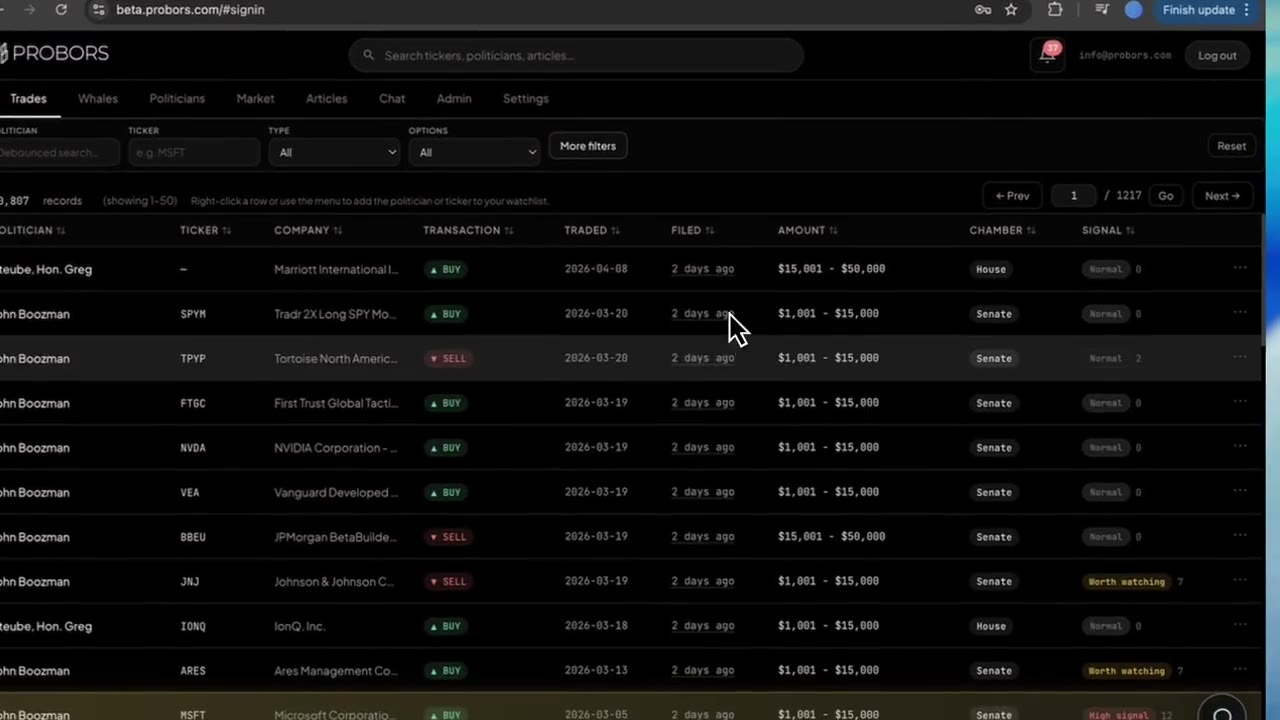
Congressional STOCK Act feeds are not all common stock. Members file municipal bonds, ETF lines, fund interests, real-estate holdings, and crypto-related disclosures that share the same Trades table as blue-chip purchases. ProBors asset class filters live inside the More filters dialog on the Trades tab: seven preset labels (Stock, Municipal, Bond, ETF, Fund, Real Estate, Crypto) plus a custom substring field when the statutory description does not match a preset. Use them to narrow the feed before you sort by filing date or signal score—not as a substitute for reading the source PDF. This is a product walkthrough, not investment advice.
Quick answer
Sign in at probors.com, open Trades, and click More filters. Under Asset class (preset), choose the label that fits today’s question—Bond or Municipal for fixed-income weeks, ETF for fund wrappers, Stock when you want to drop bond-only noise. If the preset list misses your case, type a phrase in Asset (custom substring) so ProBors matches against normalized asset-type text from the filing. Press Done, confirm the new chip under the filter bar, and open surviving rows in the disclosure context window before you cite them.
Why asset class matters on the Trades tab
A ticker-first workflow hides real activity:
| Research question | Filter habit |
|---|---|
| “Who bought munis this month?” | Municipal or Bond preset |
| “ETF reallocations only” | ETF preset |
| “Plain equity, no fund lines” | Stock preset, optionally Exclude options in the top bar |
| “Structured note language in the form” | Custom substring (for example Note or Structured) |
Preset matching is substring-based on normalized labels, not a perfect map of every House asset-type code. When a row looks misclassified, trust the official PTR or periodic report over the preset chip.
Step 1: Open More filters from Trades
- Open Trades from the dashboard header—the default congressional feed.
- Set quick bar fields first if you already know politician or ticker; asset class works with or without those constraints.
- Click More filters in the compact toolbar. The modal opens without clearing your politician or ticker text.
For the full dialog layout, see the More filters guide. This post focuses only on the two Asset fields.
Step 2: Pick a preset asset class
The Asset class (preset) dropdown lists:
- Stock
- Municipal
- Bond
- ETF
- Fund
- Real Estate
- Crypto
Choose All asset types to remove the preset. Selecting a preset sends a normalized asset_type match to the screener—equity-heavy mornings often start with Stock so Senate bond dumps do not dominate the first page.
Done refreshes the table and adds a removable chip under the bar (for example Asset class: ETF). Click × on that chip to drop the preset without reopening the dialog.
Step 3: Use a custom substring when presets are not enough
The Asset (custom substring) field accepts any text fragment ProBors stored from the source form—useful when:
- The description says “Virginia GO bonds” but you want every GO line
- A fund name appears without a liquid ticker
- House asset vocabulary does not map cleanly to a single preset
If you type in the custom field while a preset is selected, the custom value replaces the preset in the active filter—pick one approach per scan, not both at once. For non-equity triage habits beyond the UI, see how to research non-equity congressional disclosures.
Step 4: Layer date, signal, and Options toggles deliberately
Asset class rarely works alone on busy filing weeks.
- Add a Date range in the same dialog—filing date for “what published recently,” trade date when you study timing around hearings or earnings.
- Set Min signal (1–15) when you want higher-context rows after the asset filter (see filter congress trades by signal score).
- On the Trades top bar, set Options to Exclude options-related when Stock preset still pulls derivative-heavy lines—or open the congress options and derivatives guide when options are the point.
Read the chip row before you paginate; pagination on Trades keeps filters but makes it easy to forget an old asset chip from yesterday’s scan.
Step 5: Verify survivors in the context window
Filtering organizes the feed; verification stays row-by-row.
- Click a surviving line and read Timeline & source for House vs Senate and filing lag.
- Expand Disclosure detail when the ticker column shows a placeholder or the company field carries a long statutory description.
- Follow the original filing link when the row might leave your private notes—see original filing links for where PDFs open.
Add politicians or tickers to your watchlist only after that pass—alerts fire on new filings, not on rows you already filtered today.
Common mistakes
- Assuming Stock removes every non-equity line — Some descriptions still carry fund or ADR language; combine with custom substring or read company text.
- Treating preset labels as SEC or House official codes — They are ProBors normalization for screening, not legal categories.
- Skipping empty tables — A tight asset plus date window can look blank on quiet Senate weeks; check probors.com/status before you conclude no filings exist.
- Quoting rows without PDF checks — Bond and municipal lines often lack tickers; citations need the source form, not just the table.
FAQ
What is the difference between asset class preset and custom substring?
The preset dropdown maps to seven common STOCK Act buckets ProBors recognizes in bulk. Custom substring matches any text in the normalized asset-type field—better for one-off statutory phrases. Only one active asset rule applies at a time.
Can I filter asset class on the Whales tab?
Whales screens insider Form 4 activity with SEC-oriented fields, not congressional asset presets. Use the Whales tab guide for insider filters.
Does the Stock preset include ETFs?
ETF lines often carry their own labels. Use ETF when you want fund wrappers; use Stock when you mean common-equity-style rows without fund or bond vocabulary.
Why does my Bond filter return rows with missing tickers?
Municipal and corporate bond disclosures frequently have no listed equity symbol. Read the Company column and open the PDF—the missing ticker is expected, not a data error.
How do asset filters interact with estimated value bounds?
You can set Min / max estimated value in the same More filters dialog. Size filters run after asset narrowing—see estimated value filters for how those bounds behave.
Narrow congressional feeds by asset type
Sign in at ProBors, open Trades → More filters, and pair asset class presets with date and signal fields before you verify source filings.
Get startedRelated reading
- ProBors Trades tab guide
- ProBors More filters dialog guide
- How to research non-equity congressional disclosures
- ProBors congress options and derivatives guide
- ProBors estimated value filters guide
Sources
- U.S. House Clerk — Financial disclosure search — official House PTR filings
- U.S. Senate eFD search — official Senate periodic transaction reports
- House Financial Disclosure asset type codes — PTR field vocabulary
- STOCK Act (Pub. L. 112-105) — statutory disclosure framework
- Rows were checked in ProBors and should be verified against the original filing.
- Ingestion health: probors.com/status
Sources & methodology
Last updated:
ProBors uses public disclosure records, SEC filings, House and Senate financial disclosure portals, market data, and in-product workflow checks. Articles are written as research education, not investment advice.