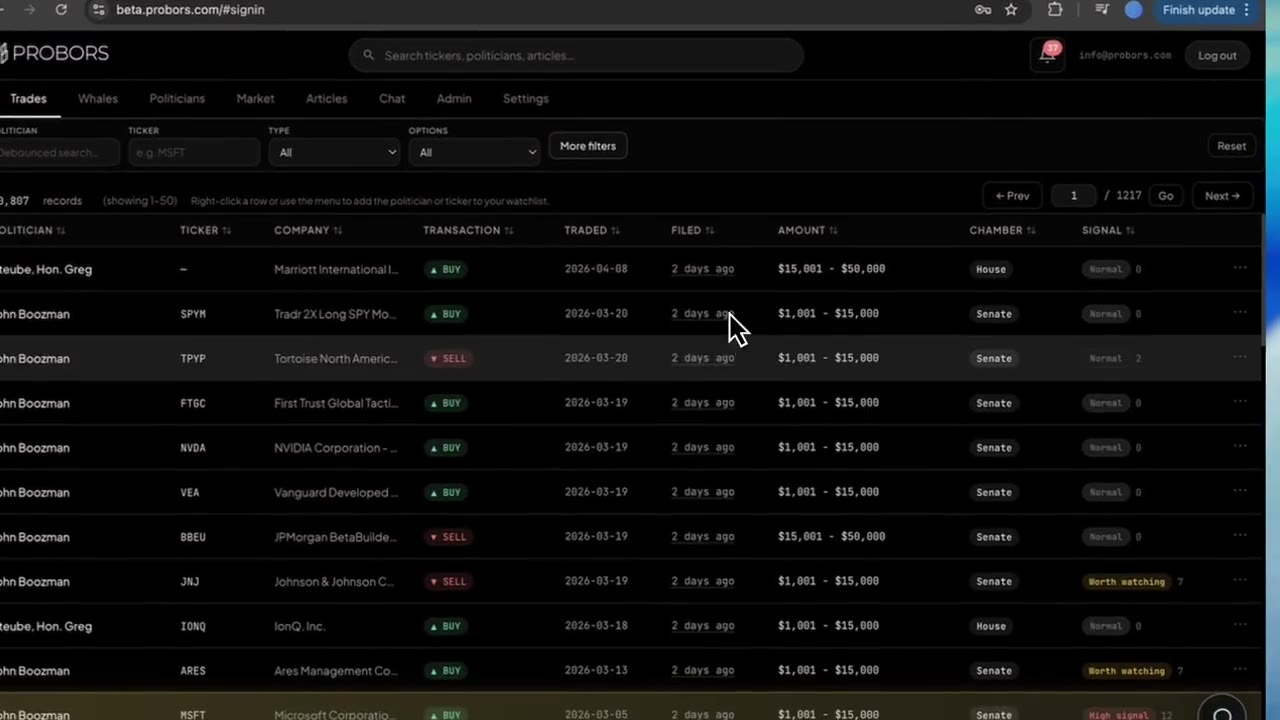
On busy filing mornings, the Congressional trades and Whales tables can return hundreds of rows. ProBors marks only the high-signal tier with an amber row highlight—a gradient background and a left accent bar—so you can skim the page without reading every badge. The highlight is a reading queue, not a buy or sell call. Pair it with the Signal column label, hover tooltips for scoring reasons, and the full context window before you cite a row. This guide explains how that visual queue works on probors.com and how to fit it into a daily STOCK Act or Form 4 scan. This is product workflow context, not investment advice.
Quick answer
Sign in, open Trades or Whales, and sort or filter the feed the way you usually do for filing date or ticker. Scan for amber-highlighted rows—they indicate the high-signal tier only. Read the Signal badge and numeric score on every row you shortlist; hover the badge when you want reason bullets without opening the context panel. Click a highlighted row to verify traded vs filed dates, amount bracket, and the expanded reason list. Use More filters → Min signal or the Signal score sort preset when you want the table ordered by score instead of relying on color alone.
What the amber highlight means (and what it skips)
ProBors attaches a signal object to many congressional and insider rows when scoring jobs have run. Each row gets a tier, a label, a numeric score, and optional reason lines derived from disclosure context.
| Visual cue | Meaning | What to do next |
|---|---|---|
| Amber row highlight | Tier is high-signal | Open the row or context window; verify the official PDF |
| Signal badge only (no highlight) | Worth watching (notable tier) or Normal | Still read before sharing—highlighting is reserved for the top tier |
| Empty signal cell | No score attached for that row | Use dates, amount, and source links; do not assume a bug |
Worth watching rows can still matter—especially after a large batch filing—but they do not receive the amber treatment. That is intentional: the highlight is meant to pop on a dense page, not paint half the table yellow.
The same highlight pattern appears on Trades, Whales, and congress or insider lists inside the Market workspace when signal data is present.
Step 1: Open Trades with a bounded date window
A full-history table dilutes the highlight.
- Open Trades from the dashboard header.
- Click More filters and set Date range on filing date or trade date—seven to fourteen days works for a daily scan. See the More filters guide for chip behavior.
- Optionally set Politician, Ticker, or Buys / Sells when you already know the subject.
Confirm the chip row under the toolbar so you are not accidentally scanning every STOCK Act row ProBors has ingested.
Step 2: Sort the Signal column or use the Signal score preset
Highlighting helps on unsorted pages, but ordering by score puts the strongest rows at the top.
- Click the Signal column header to toggle ascending or descending on the numeric score.
- Or open More filters, choose Sort preset → Signal score, and press Done.
For a repeatable morning queue that combines filters and tiers, follow how to filter congress trades by signal score. For the broader scoring model, see ProBors trade signal scores.
Step 3: Read badges and hover text before you click
Each scored row shows a tier badge and, when available, a small numeric score beside it.
- Hover the Signal cell to preview reason lines (insider overlap, first-time ticker, filing lag context, and similar factors).
- Notice amber highlight + high-signal badge together—that pairing is the strongest table-level nudge ProBors provides.
- Rows without a highlight can still carry Worth watching labels worth opening on slow news days.
Use the hover flyout on BUY and SELL badges when the transaction type column looks truncated before you invest time in the context window.
Step 4: Click the row for verification, not for a verdict
Clicking a highlighted row opens the disclosure context window. Read in this order:
- Hero strip — transaction type, amount bracket or notional, chamber or filing source.
- Timeline — traded date, filed date, and lag in plain language (pair with relative filing dates on the table).
- Signal reasons — the same factors behind the highlight, often with more room than the hover tooltip.
- Original filing link — open the House PTR, Senate report, or Form 4 before external sharing. See original filing links.
Add the politician or ticker from the row menu when the disclosure is worth tracking—see row watchlist follow.
Step 5: Repeat the pattern on Whales and Market lists
Insider Whales rows use the same amber rule when tier is high-signal. After you shortlist a congressional name:
- Open Whales, filter by ticker, and scan for matching highlights.
- Open Market on that symbol to see chart markers and any scored rows in the disclosure side panels—see the Market workspace guide.
Congressional high-signal context and insider high-signal context are scored independently. Two highlights on the same ticker are a research flag, not proof of coordination.
What this does not prove
Amber highlighting does not mean the politician or insider had non-public information, that the trade will be profitable, or that copying the position is appropriate. Scores can persist on older filings that still rank highly in a sort. Filing lag means the market often moved before the row became public. High-signal is triage language—always confirm owner, amount bracket, and asset type on the government source PDF.
FAQ
Why is one row highlighted but another row with a higher numeric score is not?
Tier and score are related but not identical. Only high-signal tier rows receive the amber row style. A Worth watching row may show a competitive score without the highlight.
Do all Trades rows have signal scores?
No. Fresh ingest rows, thinly parsed filings, or non-equity lines may show an empty signal cell. Use filing dates, chamber badges, and PDF verification instead of waiting for a badge.
Does high-signal highlighting work on mobile layouts?
Yes. On narrow screens ProBors switches to a card-style table; high-signal rows keep an amber inset bar so the queue remains visible.
How is this different from setting a minimum signal in More filters?
Min signal in More filters hides rows below your floor. Row highlighting calls attention to the top tier among rows that already match your filters. Use both: filter to a date window, set a floor if you want, then scan highlights on the remaining set.
Can I turn off highlighting?
There is no separate toggle—the highlight is tied to tier. If you prefer a text-only workflow, sort on the Signal column and ignore background color.
Triage high-signal disclosures faster
Open ProBors Trades or Whales, sort by signal score, and use amber highlights as your first-pass queue—then verify every cite on the official filing.
Get startedRelated reading
- ProBors trade signal scores
- How to filter congress trades by signal score
- ProBors Trades tab guide
- ProBors Whales tab guide
- ProBors disclosure context window
Sources
- U.S. House Clerk — Financial disclosure search — official House PTR filings
- U.S. Senate eFD search — official Senate periodic transaction reports
- STOCK Act (Pub. L. 112-105) — statutory disclosure framework
- Rows were checked in ProBors and should be verified against the original filing.
- Ingestion health: probors.com/status
Sources & methodology
Last updated:
ProBors uses public disclosure records, SEC filings, House and Senate financial disclosure portals, market data, and in-product workflow checks. Articles are written as research education, not investment advice.