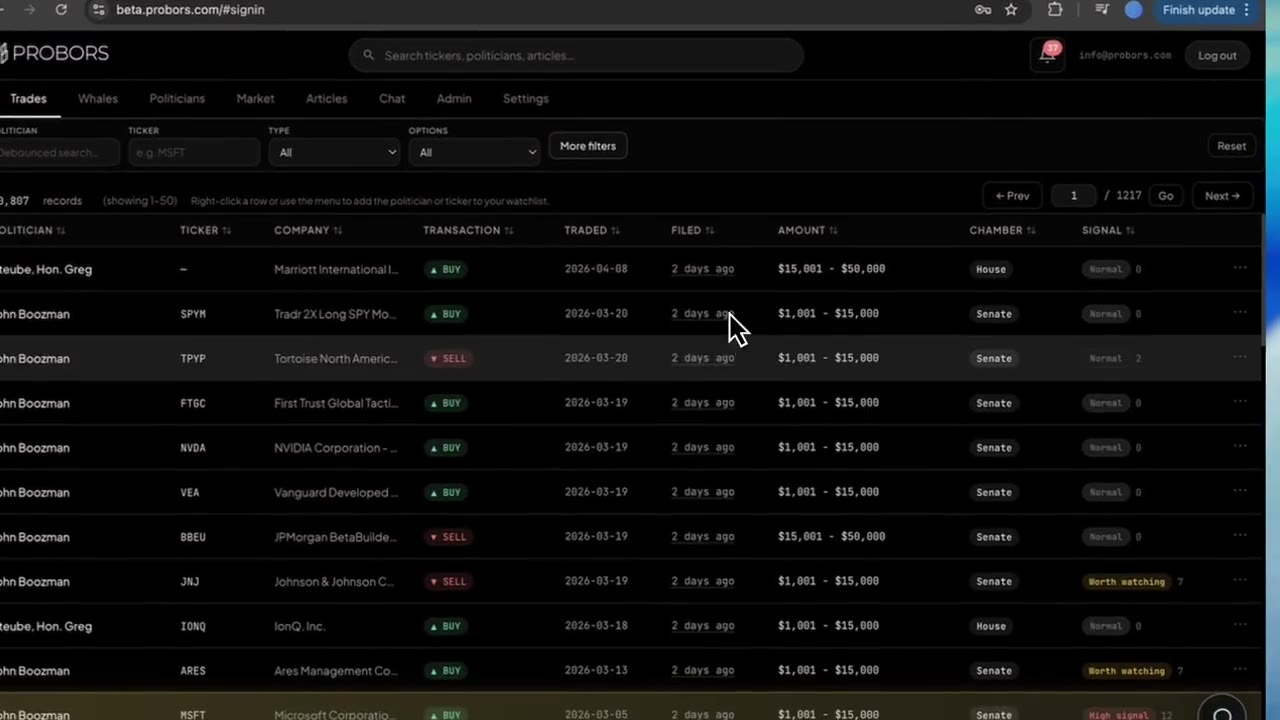
ProBors date presets are the Quick chips inside More filters on both Trades and Whales: 7d, 30d, 90d, YTD, and All dates. One click sets the start and end of your scan to “from this preset through today” without wiping politician, ticker, or signal filters you already set in the top bar. Use 7d for a Monday freshness pass, 30d when you follow one member through a news cycle, 90d for ticker overlap with insiders, YTD for year-to-date disclosure reviews, and All dates when you need the full history behind a politician name. Presets live beside the calendar fields so you can still pick a custom From / To day when a batch does not match a round window. This guide is product workflow only—not investment advice.
Quick answer
Open Trades or Whales, click More filters, scroll to the Date row, and tap a Quick chip. Done refreshes the table; a Date chip appears under the toolbar showing your span. 7d and 30d are the usual daily and weekly habits; pair 90d with a ticker filter when you compare congress and whale activity on one symbol. Click All dates to remove the window without clearing other filters. After Done, open a row’s disclosure context window and compare Traded vs Filed so a wide trade-date window does not look like “fresh news” when the filing landed weeks later.
How presets differ from sorting by Filed
Presets limit which rows load into the table. Sorting the Filed column (or choosing Recent first) orders the rows that already match your filters—they are complementary, not interchangeable.
| Action | What changes | Typical morning habit |
|---|---|---|
| 7d preset | Only rows with dates inside the last seven days | Cut noise before you read |
| Filed sort descending | Newest filing dates on top | Triage within the preset window |
| All dates + politician filter | Full disclosure history for one member | Profile-style research |
For relative Today / Yesterday labels in the Filed column, see the relative filing dates guide. For every field in the modal, see More filters dialog.
Step 1: Open More filters and find the Quick chips
- Sign in at probors.com.
- Open Trades (congressional STOCK Act rows) or Whales (large Form 4 prints).
- Set quick bar filters first—ticker, politician, Buys / Sells, or P+S market on Whales when you want purchase-and-sale prints only.
- Click More filters and locate the Date block. Below the From and To calendar inputs, find Quick with 7d, 30d, 90d, YTD, and All dates.
Presets set the From and To fields together: the end date is always today in your local calendar (except All dates, which clears both fields). You can still type or pick calendar dates manually when you need an exact batch window.
Step 2: Choose a preset for your research question
| Preset | Window | Good fit on Trades | Good fit on Whales |
|---|---|---|---|
| 7d | Last seven days through today | “What filed this week?” after House PTR drops | Fresh large insider prints |
| 30d | Last thirty days | Follow one politician through a hearing cycle | Cluster detection on one issuer |
| 90d | Last ninety days | Ticker theme with cross-chamber habits | Overlap checks before earnings season |
| YTD | January 1 through today | Year-to-date disclosure reviews | Annual insider flow on a watchlist name |
| All dates | No date bound | Full member history with a politician filter | Deep issuer history with a ticker filter |
Tap Done to apply. If results look empty on a Senate-heavy week, widen to 30d or check ProBors data status before assuming no filings exist.
Step 3: Combine presets with signal and sort habits
Date presets stack with other More filters fields:
- Set 7d, then add a Min signal floor when the table is crowded—see filter congress trades by signal score.
- Choose Signal score or Recent first in Sort preset so high-priority rows float up inside the same window.
- On Trades, add Exclude options in the top bar before Done when common-stock lines matter more than derivative rows.
Remove a single constraint from the chip row (for example drop Min signal but keep Date: … → today) when you want to widen results without reopening the whole dialog.
Step 4: Switch from a preset to a custom calendar span
When a known filing batch falls outside a round preset:
- Open More filters again.
- Leave Quick alone or click All dates to reset.
- Set From and To with the calendar icons next to each input—both cap at today; To cannot fall before From.
- Choose Done and confirm the Date chip matches your custom span.
This pattern helps when you reconcile a headline date to a specific Senate upload window without loading the entire table.
Step 5: Verify lag and sources before you share a row
Presets accelerate triage; they do not certify intent or timing accuracy.
- Click a surviving row and read Traded and Filed in the context window.
- Compute whole-day lag when the story depends on “how late” the form arrived—see screen congress trades by filing lag.
- Open the official House PTR or Senate periodic PDF via original filing links.
Add politicians or tickers to your watchlist when a preset plus filter combo should become a standing alert.
Common mistakes
- Treating 90d as “fresh news.” Long windows surface old trades filed recently—always read Traded and Filed together.
- Clearing the whole screen instead of All dates. Use All dates to drop only the date chip; use Reset only when you want a blank tab.
- Forgetting local midnight. Presets end on today in your timezone; hover Filed for the numeric day when you cite a row publicly.
- Skipping verification on empty tables. Tight 7d windows look blank during ingest delays—status page first, then widen the preset.
FAQ
Do date presets work the same on Trades and Whales?
Yes—the Quick chips and calendar fields use the same control on both tabs inside More filters. Whales adds instrument and SEC-code fields around the same Date block; the preset behavior is identical.
What happens if I click 7d twice?
Each click recomputes the window from today, so the range stays current if you keep the dialog open overnight. Close with Done so the table refreshes once.
Does YTD follow the calendar year or fiscal year?
YTD means January 1 of the current calendar year through today, matching how most STOCK Act review memos bucket annual activity—not a company fiscal year.
Can I use presets with a politician name in the top bar?
Yes—that is the intended pattern. Example: politician filter plus 90d for a quarterly habits pass, or ticker filter plus 7d for a narrow freshness scan.
How do presets interact with column sorting?
Presets filter the row set; column headers and Sort preset order rows inside that set. Sort by Filed after 7d when you want the newest filings within the week on top.
Time-box disclosure scans on ProBors
Sign in, open Trades or Whales, and use 7d–YTD presets in More filters beside your existing ticker and politician filters.
Get startedRelated reading
- ProBors More filters dialog guide
- ProBors relative filing dates guide
- How to run a weekly congress disclosure review
- ProBors Whales tab guide
Sources
- House Clerk Financial Disclosure search — official House PTR filings
- Senate Financial Disclosures (eFD) — official Senate periodic transaction reports
- SEC EDGAR — Section 16 filings — Form 4 and insider disclosure context
- ProBors data status — ingestion health when a tight date window looks empty
- Rows were checked in ProBors and should be verified against the original filing.
Sources & methodology
Last updated:
ProBors uses public disclosure records, SEC filings, House and Senate financial disclosure portals, market data, and in-product workflow checks. Articles are written as research education, not investment advice.