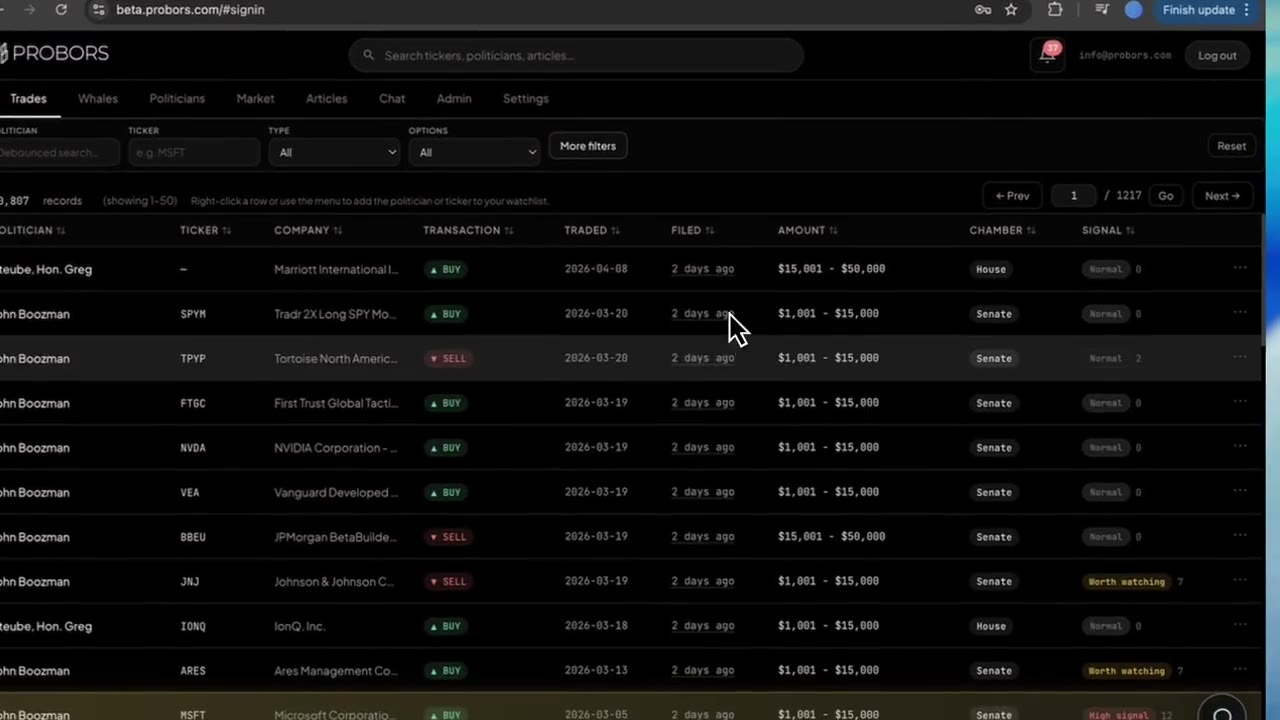
Deep disclosure work on ProBors jumps between Trades, Market, member profiles, Stock analysis, and the full-page chart. The signed-in dashboard remembers your last primary tab for the browser session, politician and chart screens offer a Back control when history is empty, and some entry points (search, heatmap tiles) land you on Market with the ticker already loaded. Use that behavior so filter chips and tab choice survive side trips—not so you skip reading original filings. This is a product walkthrough for disclosure researchers, not investment advice.
Quick answer
Work on Trades or Whales, open a politician or chart in another screen, then return with the browser Back button, Back to dashboard on a profile, or ← Market after Stock analysis. ProBors restores the tab you had open in the same session (for example Market instead of defaulting to Trades). From the Market heatmap, clicking a symbol opens Market → Workspace on that ticker. Bookmark member profiles at /politicians/{name} when you revisit the same senator weekly; use global search when you need a fast pivot without losing your place.
Where return navigation matters
Researchers lose time when every detour resets the dashboard:
| You left from… | Typical detour | What you want when you return |
|---|---|---|
| Trades with filter chips | Politician profile from a row | Same tab and filters still applied |
| Market workspace on one ticker | Full chart at /chart/{TICKER} | Market tab with that symbol active |
| Whales morning scan | Stock analysis brief on one symbol | Back to the screener, not a blank home |
| Politicians directory | Settings → Notifications | Politicians or Trades—where you started |
Return navigation is about session continuity. It does not replace verifying rows in the disclosure context window or on official House, Senate, or SEC sources.
Step 1: Know which screens are “inside” vs “outside” the tab bar
The main dashboard shell holds Trades, Whales, Politicians, Market, Portfolios, Blog, Chat, and Settings behind one header. These tabs share search, the notification bell, and watchlist state.
Separate full-page routes break out for focused work:
- Member profiles at
/politicians/{name}(optional?tab=portfolioor portfolio payload links) - Advanced chart at
/chart/{TICKER} - Stock analysis as a full-screen view opened from Market → Stock analysis
When you finish on one of those routes, use its Back control or the browser back gesture. ProBors does not discard your filter chips on Trades or Whales just because you opened a profile—the tab state is stored for the session.
Step 2: Rely on session tab memory instead of re-clicking Trades
After sign-in, the dashboard opens Trades by default the first time. Once you switch to Market, Whales, or another primary tab, ProBors stores that choice for the rest of the browser session.
Practical habits:
- Pick the tab that matches today’s job (congress scan on Trades, ticker chart on Market, insider queue on Whales).
- Drill into profiles, charts, or Stock analysis as needed.
- Return with Back—you should land on the same tab, not always on Trades.
If you open a fresh browser window or clear site data, expect the default Trades landing again. Private browsing modes that block storage can behave the same way.
Step 3: Use Back on politician profiles and advanced charts
Politician profiles include Back to dashboard when the screen cannot use browser history (for example you opened the profile from a bookmark). When you arrived from a table row, the normal browser Back button usually returns you to the feed you were reading.
The advanced chart page at /chart/{TICKER} uses Back in the top bar to return to the prior screen—typically Market or the compact chart panel you expanded from. Finish drawing or marker review, press Back, and continue congress or insider triage on the workspace.
Do not treat Back as “discard research.” It only restores the UI; your watchlist, notification rules, and saved portfolio strategies are unchanged.
Step 4: Land on Market from search, heatmap, or query links
Several entry points open Market → Workspace without manual ticker typing:
- Global search — ticker matches load the Market workspace on that symbol.
- Heatmap tile — click a sector cell to jump into workspace on the chosen name.
- Signed-in home link — opening the app with
tab=marketand amarketTickerparameter loads Market on that symbol (useful when you paste a link from a colleague or an internal memo; strip sensitive account data before sharing screenshots).
After the jump, confirm you are on Workspace (not Heatmap) if you need the disclosure chart and congress tables. Filter chips on Trades are unaffected—you were on a different tab.
Step 5: Chain Stock analysis and Chat without losing the ticker
From Market, Stock analysis opens the one-shot AI brief view (see Stock analysis guide). ← Market returns to the workspace quote strip with the same symbol active—use that path instead of closing the tab when you still owe row-by-row verification.
From any tab, Chat keeps the dashboard shell visible. Switch back to Trades or Whales when a chat answer points you at filings to confirm. Pair chat output with the original filing links workflow before you cite dates or amounts externally.
Common mistakes
- Assuming a new login day restores yesterday’s tab — session memory lasts for the browser session, not indefinitely across devices.
- Opening profiles in a new tab and expecting filters in the old tab to update — each tab has its own session state; prefer Back within one tab when triaging a queue.
- Skipping verification after Stock analysis — the brief is export-ready; filings still need PDF or portal checks.
- Bookmarking only the home page — member URLs and blog guides load faster when you already know the target.
FAQ
Does ProBors save my Trades filters when I switch to Market?
Filter chips on Trades and Whales stay active while you remain in the dashboard shell. Leaving for /politicians/... or /chart/... does not reset them when you return in the same session. A full page reload can clear unsaved UI state—see the More filters dialog guide for reusable presets.
Why did I land on Trades after signing in again?
The default first tab is Trades. Session tab memory applies after you have chosen another tab at least once in that browser session.
Can I share a link that opens Market on a ticker?
Signed-in researchers can use home links that specify Market and a ticker symbol so the workspace loads that name. Do not embed account tokens or private IDs in links you share outside your team.
Is browser Back the same as clicking a dashboard tab?
Back undoes the last route change (for example profile → dashboard). Clicking Whales manually always switches tabs—use that when you intentionally want a new feed, not when you are reversing one click.
Does return navigation affect watchlist alerts?
No. Notification rules and the inbox bell are independent of which tab was visible last.
Keep disclosure context on ProBors
Use tab memory, Back controls, and Market deep links to move between congress rows, charts, and profiles without rebuilding your screener every time.
Get startedRelated reading
- ProBors global search guide — route to Market, Politicians, and Blog from one bar
- ProBors Market workspace guide — ticker hub after heatmap or search jumps
- ProBors politician profile guide — Disclosures vs Portfolio snapshot tabs on member screens
- ProBors advanced chart drawing tools — full-page chart workflow and return paths
- ProBors getting started checklist — first-week dashboard habits
Sources
- House Clerk Financial Disclosure — official House PTR portal
- Senate Financial Disclosures (eFD) — official Senate disclosure search
- SEC EDGAR — insider Form 4 and related filings
- STOCK Act (Pub. L. 112-105) — statutory basis for congressional disclosures
- Rows were checked in ProBors and should be verified against the original filing.
- Ingestion health: probors.com/status
Sources & methodology
Last updated:
ProBors uses public disclosure records, SEC filings, House and Senate financial disclosure portals, market data, and in-product workflow checks. Articles are written as research education, not investment advice.